Samsung Galaxy Tab Trading Setup: Complete Guide for 2026
Watch PredictIndicators.ai on a NinjaTrader 8 chart — predicted candlesticks and indicators, 30 bars into the future (MetaTrader 5 too):
Questions NinjaTrader 8 and MetaTrader 5 traders ask
MT5 On MetaTrader 5, PredictIndicators.ai draws predicted candlesticks and indicators 30 bars into the future, right on your charts. MetaTrader 5 guide →
Fxpro MT5 On MetaTrader 5, PredictIndicators.ai draws predicted candlesticks and indicators 30 bars into the future, right on your charts. MetaTrader 5 guide →
NinjaTrader add ons On NinjaTrader 8, PredictIndicators.ai draws predicted candlesticks and indicators 30 bars into the future, right on your charts. NinjaTrader 8 guide →
Educational purposes only — predictions are not certainties or financial advice.
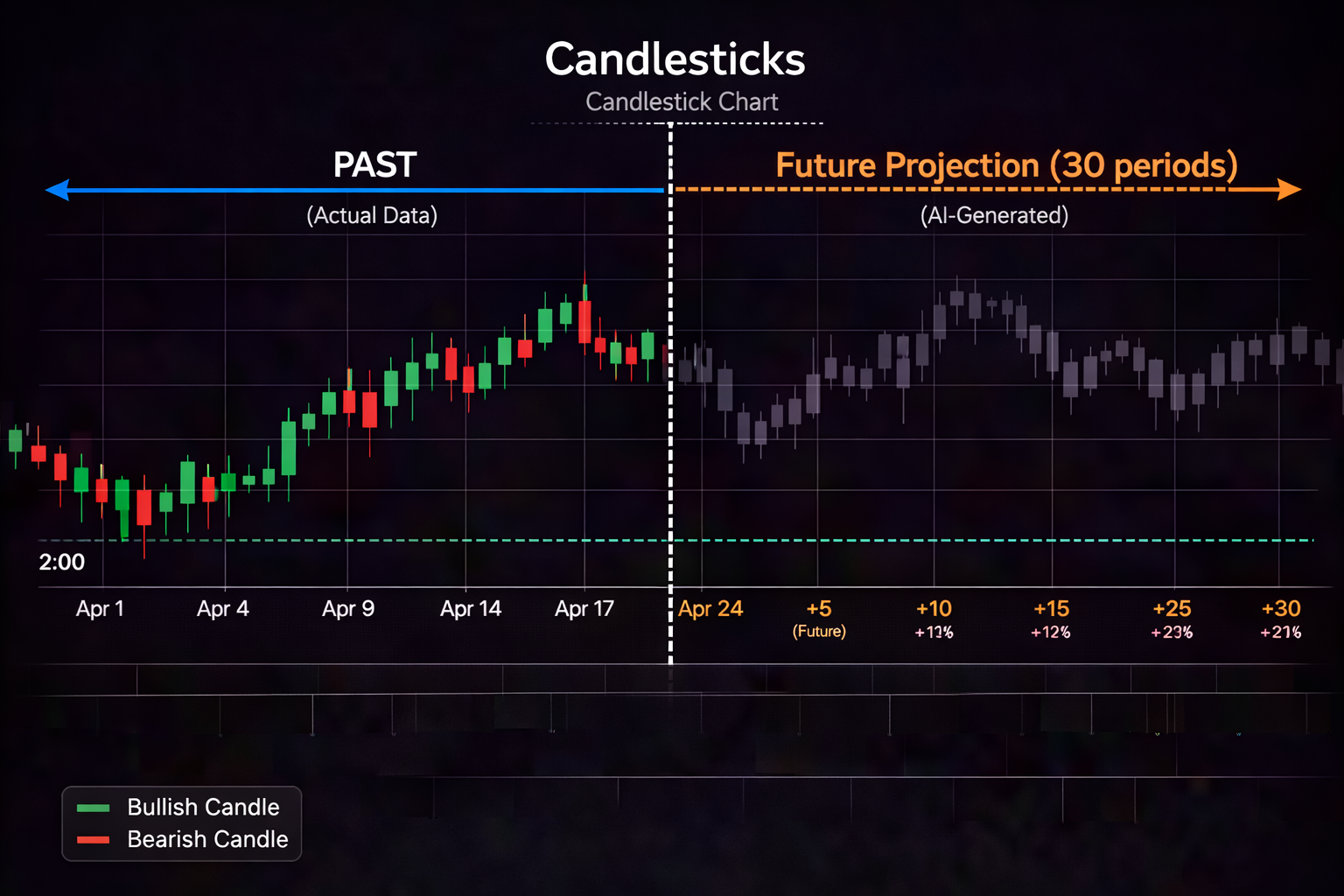

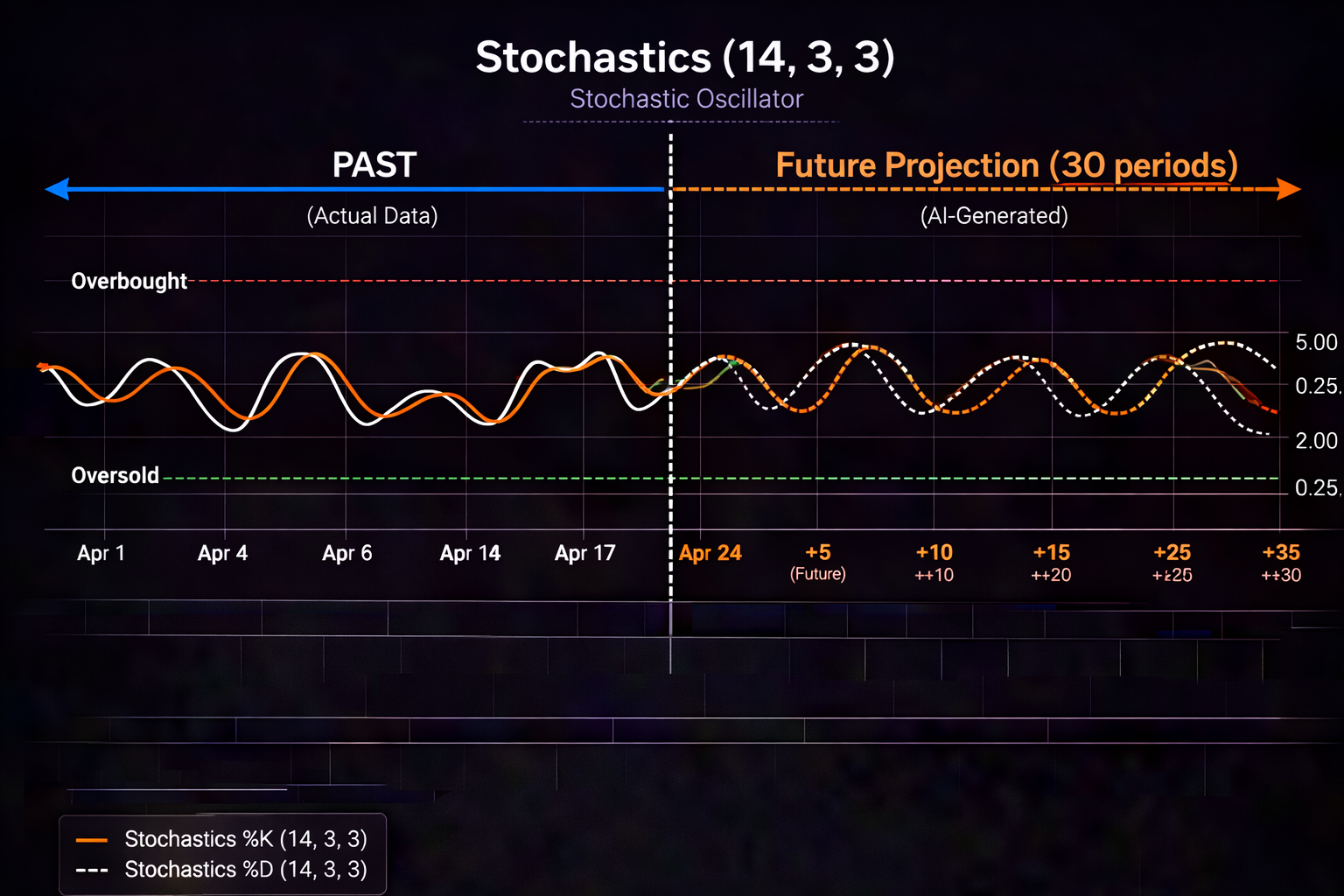


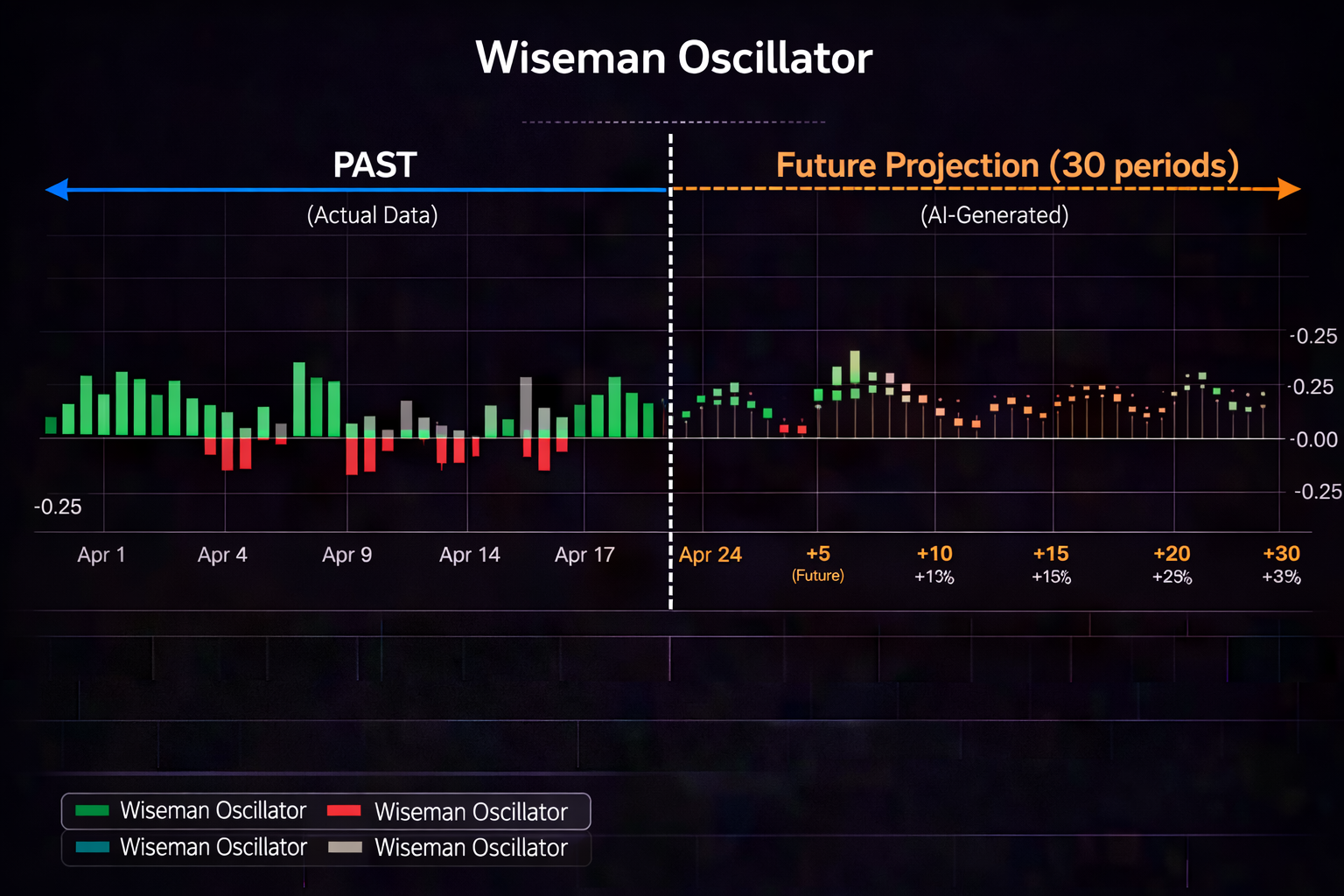
If you're trading on a Samsung Galaxy Tab, you're sitting on an underrated weapon. The Galaxy Tab S9 series — especially the S9+ and S9 Ultra — delivers a near desktop trading experience with a tablet's portability. Add Samsung's DeX mode, the S Pen for hands on chart analysis, and AI powered signals from PredictIndicators.ai, and you have a legitimate professional trading setup that fits in a backpack.
Most trading content assumes you're on Windows or Mac. iPad gets some love. But Galaxy Tab traders? Completely ignored. That's a problem, because Samsung's flagship tablets pack Snapdragon 8 Gen 2 chips, gorgeous AMOLED displays, and Android's expanding trading app ecosystem. You don't need to apologize for your device — you need to optimize it.
This guide walks through everything: which Galaxy Tab model for trading, DeX mode setup, PredictIndicators.ai Android optimization, S Pen chart tricks, split screen workflows, and whether you should pair your Tab with a keyboard or go tablet first. Whether you swing trade from your couch or day trade at a coffee shop, your Galaxy Tab can handle it.
PredictIndicators.ai works across all platforms — iPhone, iPad, Android, Mac, web, NinjaTrader 8, and MetaTrader 5. But on Galaxy Tab, you get Android's flexibility with near desktop power via DeX mode. That's a unique advantage.
Table of Contents
- Why Galaxy Tab Is the Best Android Tablet for Trading
- Galaxy Tab Models Compared: Which One for Trading?
- Samsung DeX Mode: Desktop Trading Experience on Tablet
- PredictIndicators.ai on Galaxy Tab: Full Setup
- Building Your Galaxy Tab Trading Workspace
- S Pen Trading Tricks You're Not Using
- Galaxy Tab vs. iPad Pro for Trading: Honest Comparison
- Real Example: Full Time Trader Using Only Galaxy Tab S9 Ultra
Why Samsung Galaxy Tab Is the Best Android Tablet for Trading
Let's cut through the noise: Samsung dominates the Android tablet market for a reason. The Galaxy Tab S9 series isn't just "good for Android" — it's competitive with iPad Pro in raw performance, screen quality, and build. For traders, three advantages stand out:
- DeX Mode: Transforms your tablet into a desktop like experience with taskbar, windowed apps, and mouse/keyboard support. iPad has Stage Manager, but DeX is more mature for productivity workflows.
- S Pen Included: Apple Pencil costs $130 extra. S Pen comes in the box with every Galaxy Tab S9. For traders who annotate charts, draw support/resistance, or mark entries, this is huge.
- Value: Galaxy Tab S9+ ($900) undercuts iPad Pro 12.9" ($1,100+) with similar specs. S9 Ultra ($1,200) matches iPad Pro pricing but includes keyboard cover in some bundles.
Android's trading app ecosystem has matured. Major brokers (thinkorswim, TradeStation, Interactive Brokers) have polished Android tablet optimizations. PredictIndicators.ai runs natively on Android, delivering the same AI prediction engine as iOS but with Android's flexibility for multitasking and file management.
Galaxy Tab Models Compared: Which One for Trading?
Not all Galaxy Tabs are equal. Screen size, refresh rate, and processing power matter when you're watching 5 minute charts for hours.
Galaxy Tab S9 Ultra (14.6" — Desktop Replacement)
The 14.6 inch Dynamic AMOLED 2X display is massive — bigger than most 13 inch laptops. Resolution: 2960 × 1848. Refresh rate: 120Hz adaptive. This is a desktop replacement for traders who want maximum screen real estate without lugging a laptop.
Best for: Multi chart analysis, split screen trading (PI.ai + broker + news), desk first trading with optional keyboard/mouse.
Battery life: 11,200 mAh battery lasts 8-10 hours of mixed use. Heavy chart rendering: 5-6 hours. Keep a 45W charger handy for all day sessions.
Verdict: If you want "one device for everything" — trading, work, media — the Ultra is the play. Overkill for casual traders, perfect for serious intraday focus.
Galaxy Tab S9+ (12.4" — Sweet Spot)
The 12.4 inch display hits the sweet spot: large enough for comfortable chart reading, portable enough for couch/coffee shop trading. Resolution: 2800 × 1752. Same 120Hz refresh rate, same Snapdragon 8 Gen 2 chip as Ultra.
Best for: Most traders. Balance of screen size, portability, and price ($900 vs. $1,200 Ultra).
Battery life: 10,090 mAh — slightly smaller than Ultra, but similar real world续航 (5-7 hours trading).
Verdict: This is the recommendation for 90% of Galaxy Tab traders. Big screen, flagship performance, $300 less than Ultra.
Galaxy Tab S9 (11" — Portable)
The 11 inch base model is portable and capable, but screen size constrains multi app workflows. Resolution: 2560 × 1600. Same chip, same 120Hz display — just smaller canvas.
Best for: Travel traders, couch sessions, single symbol focus. Less ideal for split screen multitasking.
Verdict: Great for swing trading monitoring and alert execution. For active day trading with multiple charts, step up to S9+.
Galaxy Tab A Series (Budget Option)
Tab A9/A9+ ($200-300) are budget tablets with slower chips, 60Hz displays, and less RAM. Fine for checking positions and receiving alerts — not for active chart analysis.
Verdict: Backup device only. Use as a secondary alert screen, not your primary trading tool.
Pro Tips for Galaxy Tab Trading Hardware:
- Book Cover Keyboard: Worth it for DeX mode trading (typing notes, journaling, order entry)
- S Pen replacement tips: Get firmer tips for precise chart drawing (stock tips wear down fast)
- 45W fast charger: 0-50% in 30 minutes — critical for all day trading between sessions
- Tablet stand: Adjustable stand ($30-50) for desk trading — better than propping on keyboard
- Screen protector: Matte finish reduces glare for long sessions (but slightly reduces S Pen precision)
Samsung DeX Mode: Desktop Trading Experience on Tablet
DeX mode is Samsung's secret weapon. It transforms your Android tablet into a desktop like environment with:
- Taskbar at bottom (like Windows/macOS)
- Windowed apps (resize, minimize, snap to sides)
- Virtual desktops (multiple workspaces)
- Mouse/keyboard support (full pointer mode)
- External monitor output (HDMI/USB-C)
What Is DeX Mode?
DeX (Desktop eXperience) launches automatically when you connect a keyboard cover, or manually from Quick Settings. The interface shifts from Android tablet mode (full screen apps, gesture nav) to desktop mode (windows, taskbar, pointer control).
For traders, this means:
- Run PredictIndicators.ai in a resizable window beside your broker app
- Snap TradingView to left half, PI.ai alerts to right quarter, news feed to remaining space
- Use mouse for precise chart navigation (zoom, pan, drawing)
- Type journal notes in a text window without leaving your trading workspace
DeX with Keyboard + Mouse
Pair a Bluetooth mouse and the Book Cover Keyboard (or any USB C keyboard). DeX recognizes both instantly. Mouse cursor is smooth, keyboard shortcuts work in most apps.
Limitation: Not all Android apps have desktop class keyboard shortcuts. You get basic nav (Tab, Enter, arrows) but not advanced trading hotkeys like desktop platforms.
DeX on External Monitor
Connect Galaxy Tab to external monitor via USB C to HDMI adapter (or wirelessly to Samsung Smart Monitor). DeX extends to the external display — tablet becomes touchpad/controller.
Use case: Home desk setup. Tab on stand, 27 inch 4K monitor as main display. Trade on big screen, use tablet for alerts and quick annotation.
DeX Mode vs. Regular Tablet Mode: Which Is Better for Trading?
Tablet mode wins for:
- Couch/calling trading (touch first, no peripherals)
- Quick alert checks (instant app launch, no desktop boot)
- Travel sessions (minimal setup, native Android gestures)
DeX mode wins for:
- Desk trading (keyboard + mouse, multi window workflows)
- Journaling + data entry (typing efficiency)
- External monitor setups (desktop replacement)
Pro tip: Keep both modes ready. DeX for planned desk sessions, tablet mode for opportunistic trading (early morning couch session, lunch break at office).
Related: Multi Device Trading Sync Guide
PredictIndicators.ai on Galaxy Tab: Full Setup
PredictIndicators.ai on Android delivers the same AI prediction engine as iOS — predicting MACD, RSI, Stochastics, Bollinger Bands 30 bars ahead — but with Android's multitasking advantages. Here's how to optimize:
Android Tablet Optimization
The Android app detects tablet screen size and adjusts layout:
- Landscape mode: Dashboard shows 3 indicators side by side (MACD, RSI, Stochastics)
- Portrait mode: Stacked view (one indicator full width, scroll to others)
- DeX mode: Windowed app, resizable to your preferred dashboard size
Notifications are configurable per Android's granular notification channels — more control than iOS for alert types and sounds.
Split Screen: Run PI.ai Beside Your Broker App
This is Android's killer feature for trading:
Setup:
- Open PredictIndicators.ai
- Tap Recent Apps (square button or swipe up + hold)
- Tap app icon at top of window → Select "Open in split screen"
- Choose your broker app (thinkorswim, TradeStation, etc.) for bottom half
Result: PI.ai signals occupy top 50%, broker order entry occupies bottom 50%. See alert → tap to preview → execute order without app switching. Saves 5-10 seconds per trade — critical for 1 minute scalps.
S Pen for Chart Annotations
Draw directly on PredictIndicators.ai charts:
- Drag S Pen across chart: draw trendlines, support/resistance
- Tap chart: drop entry/exit markers
- Circle to search: circle a ticker symbol, get instant lookup (S23+/S9+ feature)
- Double tap S Pen: switch between drawing/color picker (app specific)
Unlike touch drawing, S Pen is precise — no fat finger errors on small candles.
Pop Up Window for Alerts
Android's pop up window feature lets PI.ai alerts hover above other apps:
Enable: Settings → Apps → PredictIndicators.ai → Pop up window → Enable
Use: When alert triggers, it opens in a small floating window. Drag to screen edge, resize, keep visible while using broker or news app.
Run PredictIndicators.ai in split screen on Galaxy Tab — signals on top, execution below. Start your free trial →
Building Your Galaxy Tab Trading Workspace
Your workspace isn't just the tablet — it's the ecosystem around it. Here's how to build a professional Galaxy Tab trading station:
Book Cover Keyboard + Trackpad
Samsung's official Book Cover Keyboard (~$180) includes trackpad, S Pen slot, and adjustable viewing angles. Third party options (Logitech Combo Touch, $130) offer similar features with better key travel.
Why it matters: DeX mode + keyboard = typing efficiency for trade journaling, notes, email. Trackpad = precise chart navigation without touch occlusion.
Tablet Stand Recommendations
For desk trading, a stand is non negotiable:
- Lamicall Adjustable Stand ($25): Sturdy, multiple angles, foldable for travel
- Twelve South Compass Pro ($80): Premium, magnetic adjustment, laptop like positioning
- Nearpow Gooseneck Arm ($35): Flexible positioning, clamp mount for desk
Angle tip: 60-70 degrees for touch use, 20-30 degrees for keyboard use.
Multi App Workflow (DeX Mode)
DeX excels at multi app arrangements. Standard trading setup:
- Left 50%: PredictIndicators.ai (signal dashboard)
- Right top 25%: Broker app (order entry, positions)
- Right bottom 25%: News feed (Benzinga, Twitter/X)
Save this arrangement as a DeX favorite — launches with one tap.
Widget Placement for Signal Monitoring
Android widgets live on home screens. Add PI.ai widgets for:
- Active signal count (0/1/2 signals forming)
- Market status (open/pre-market/closed)
- Next economic event countdown
Pin widget page as leftmost home screen — swipe right to see signals at a glance.
Always On Display: Passive Signal Monitoring
Galaxy Tab's Always On Display (AOD) shows widgets even when sleeping. Configure AOD to display:
- Market status icon
- Signal count badge
- Time + date
Wake tablet → see if you need to act. Saves battery vs. full screen wake cycles.
S Pen Trading Tricks You're Not Using
The S Pen isn't just for note taking. Traders can leverage it for hands on chart analysis:
Drawing Support/Resistance Lines
Drag S Pen across PI.ai chart to mark key levels. Unlike touch, S Pen is precise enough for single candle wicks. Save drawings to chart template — reload next session.
Pro move: Use different colors for different session levels (pre market high/low in orange, RTH levels in white, power hour levels in green).
Marking Entry/Exit Points
Before entering, use S Pen to circle the setup candle. After filling, drop an "X" marker at entry price. Update with arrow to exit. Visual journal builds pattern recognition.
Circle to Search for Ticker Lookup
Galaxy S23+/Tab S9 series have Circle to Search: circle any text (ticker symbol, news headline) → get instant Google search results. Use for:
- Circling ticker → see earnings date, market cap, key stats
- Circling news headline → get full article, related tickers
- Circling indicator name → quick definition/tutorial
No app switching, no copy paste — circle and go.
Using S Pen for Technical Analysis — Like Drawing on Paper
Technical analysis started with pencil and graph paper. S Pen brings that back digitally:
- Freehand trendlines (more intuitive than click drag on trackpad)
- Fibonacci retracement sketches (rough drafts before precise tool)
- Pattern annotations (head/shoulders, triangles, flags)
- Arrow callouts for key candles ("this breakout failed due to CPI")
Export annotated charts as PNG → save to trade journal. Visual memory > text memory for most traders.
Galaxy Tab vs. iPad Pro for Trading: Honest Comparison
Let's address the elephant: iPad Pro is the trading tablet benchmark. But Galaxy Tab S9+ competes directly. Here's the honest breakdown:
Screen Quality
iPad Pro 12.9": Mini LED, 2732 × 2048, 120Hz ProMotion, brighter (1000 nits SDR, 1600 nits HDR). Slight edge for HDR content, similar for trading charts.
Galaxy Tab S9+: Dynamic AMOLED 2X, 2800 × 1752, 120Hz adaptive, vibrant colors. Perfect blacks (OLED advantage). Tie — both excellent for chart clarity.
App Ecosystem
iPad: More broker apps with tablet optimizations (thinkorswim, E*TRADE, IBKR all have iPad specific layouts). Larger app library overall.
Android: Catching up. Major brokers support Android tablets now. PredictIndicators.ai parity (same features, same performance). Edge: iPad (maturity, not capability).
Performance
iPad Pro M2: Desktop class chip, crushes any workload. Overkill for trading apps.
Galaxy Tab S9+ Snapdragon 8 Gen 2: Flagship mobile chip, handles trading apps smooth. No thermal throttling under normal use. Tie — both overkill for trading (neither bottlenecks).
Price/Value
iPad Pro 12.9": $1,100 (tablet only) + $130 (Apple Pencil) + $350 (Magic Keyboard optional) = $1,580+ fully loaded.
Galaxy Tab S9+: $900 (includes S Pen) + $180 (Book Cover Keyboard) = $1,080 fully loaded. Clear winner: Galaxy Tab ($500 less, same trading experience).
The Trading Specific Verdict
If you're already in Apple ecosystem (iPhone, Mac), iPad Pro's Continuity features (Handoff, Universal Clipboard, Sidecar) justify the premium.
If you're Android/Windows, Galaxy Tab S9+ is 90% of iPad's trading capability at 65% of the price. For pure trading, the value proposition is undeniable.
Related: iPad Trading AI Setup Guide
Real Example: Full Time Trader Using Only Galaxy Tab S9 Ultra
Marcus, 34, day trades ES futures full time from his home office. His entire setup: Galaxy Tab S9 Ultra + Book Cover Keyboard + 27 inch 4K monitor (external). No laptop, no desktop. Here's his typical Tuesday:
8:30 AM — Pre Market Prep
Tablet on stand, DeX mode active, connected to external monitor. Three windows:
- Left: PredictIndicators.ai dashboard (ES 5 minute chart, MACD + RSI predictions)
- Center top: thinkorswim Android (order entry, positions)
- Center bottom: Benzinga Pro news feed
S Pen ready on desk. Checks economic calendar: CPI at 10:00 AM. Marks pre market high/low on chart with S Pen (5138/5126).
9:35 AM — Opening Range Setup
PI.ai alert: "5 minute MACD bullish crossover forming in 4 bars, RSI 31." Marcus previews: NQ breaking pre market resistance. Enters long ES at 5142, stop 5137, target 5152.
Execution: Split screen advantage — sees alert in top window, taps thinkorswim in bottom window, submits order without app switching. 8 seconds from alert to filled.
9:54 AM — Target Hit
+10 points = $500 per contract (2 contracts = $1,000). Uses S Pen to annotate chart: circles entry candle, draws arrow to exit, writes "+10 pts" in green. Export PNG to trade journal folder.
10:05 AM — Standing Down Post CPI
CPI prints hotter than expected. ES whipsaws 15 points in 90 seconds. Marcus flat — avoided volatility. Checks Twitter via pop up window: @DeItaone headline confirms print.
11:45 AM — Mean Reversion Scalp
Volume thin midday. PI.ai shows RSI heading to 74+ in 6 bars (overbought signal). Price stalls at 5165. Enters short, target 5158, stop 5169.
Fills in 4 minutes. -7 points = $350 per contract. Annotations: "RR failed, RSI div" in red.
2:30 PM — Power Hour Prep
DeX mode switches to external monitor (tablet becomes controller). PI.ai alert: "1 minute Stochastic bullish divergence, volume pickup." Marcus previews: institutional flow entering long.
3:18 PM: Enters long, rides into close. +8 points = $400 per contract.
4:05 PM — Session Review
DeX window: text editor. Types trade journal:
Date: 2026-05-23
Trades: 3
strong performance
P&L: +$1,750 gross
Setups: ORB long, RR short, power hour long
Notes: Disciplined post CPI stand down. S Pen journaling improving pattern recognition.
Exports annotated charts, attaches to journal entry. Syncs to cloud (Google Drive) — accessible from phone later.
Week Summary (5 Days)
Total P&L: +$7,200 gross (before $120 commissions = +$7,080 net)
Win rate: 85% (4 of 5 days profitable)
Trades: 14 total, all executed on Galaxy Tab S9 Ultra
Setup notes: DeX mode + external monitor = desktop experience. S Pen annotations = improved journaling recall. Split screen = faster execution.
Marcus's verdict: "Sold my trading laptop after 3 months on Tab Ultra. Didn't miss it. DeX mode handles everything, battery lasts all day, and I annotate charts like I'm drawing on paper. Tablet first trading is real."
Turn your Galaxy Tab into a trading workstation. PredictIndicators.ai works on iPhone, iPad, Android, Mac, web, NinjaTrader 8, and MetaTrader 5. Start your free trial and see your next 30 bars before they form. Get started →
Final Thoughts: Galaxy Tab Trading Is Legitimate (If Optimized Right)
The Galaxy Tab S9 series isn't a "compromise" trading device — it's a legitimate professional setup when configured correctly. DeX mode delivers desktop workflows, S Pen enables hands on analysis, split screen multitasking beats app switching, and value undercuts iPad by $500+.
What separates profitable Galaxy Tab traders:
- DeX mastery: Know when to use desktop mode vs. tablet mode
- Split screen workflows: PI.ai + broker adjacent (no app switching lag)
- S Pen discipline: Annotate every trade (visual journaling > text)
- Widget strategy: Passive signal monitoring via AOD and home widgets
- Ergonomics: Stand + keyboard for desk sessions, tablet only for travel
PredictIndicators.ai on Android delivers the same AI prediction edge as every other platform — MACD, RSI, Stochastics predictions 30 bars ahead. But on Galaxy Tab, you get Android's multitasking flexibility to act on those signals faster.
You're not "making do" with a tablet. You're trading on a $900-1,200 flagship device that outperforms most trading laptops from 3 years ago. Own it. Optimize it. Execute.
Trading Disclaimer: Trading in financial markets involves substantial risk of loss and is not suitable for all investors. Past performance is not indicative of future results. This content is for educational purposes only and does not constitute financial advice. Always conduct your own research and consult with a licensed financial advisor before making any trading decisions.