NinjaTrader 8 AI Plugin Setup: Complete Walkthrough for 2026
NinjaTrader 8 has long been the platform of choice for serious futures and forex traders. Its speed, advanced charting, and robust order execution make it ideal for active day trading. But to truly maximize your edge in today's competitive markets, integrating AI powered indicators is no longer optional—it's essential.
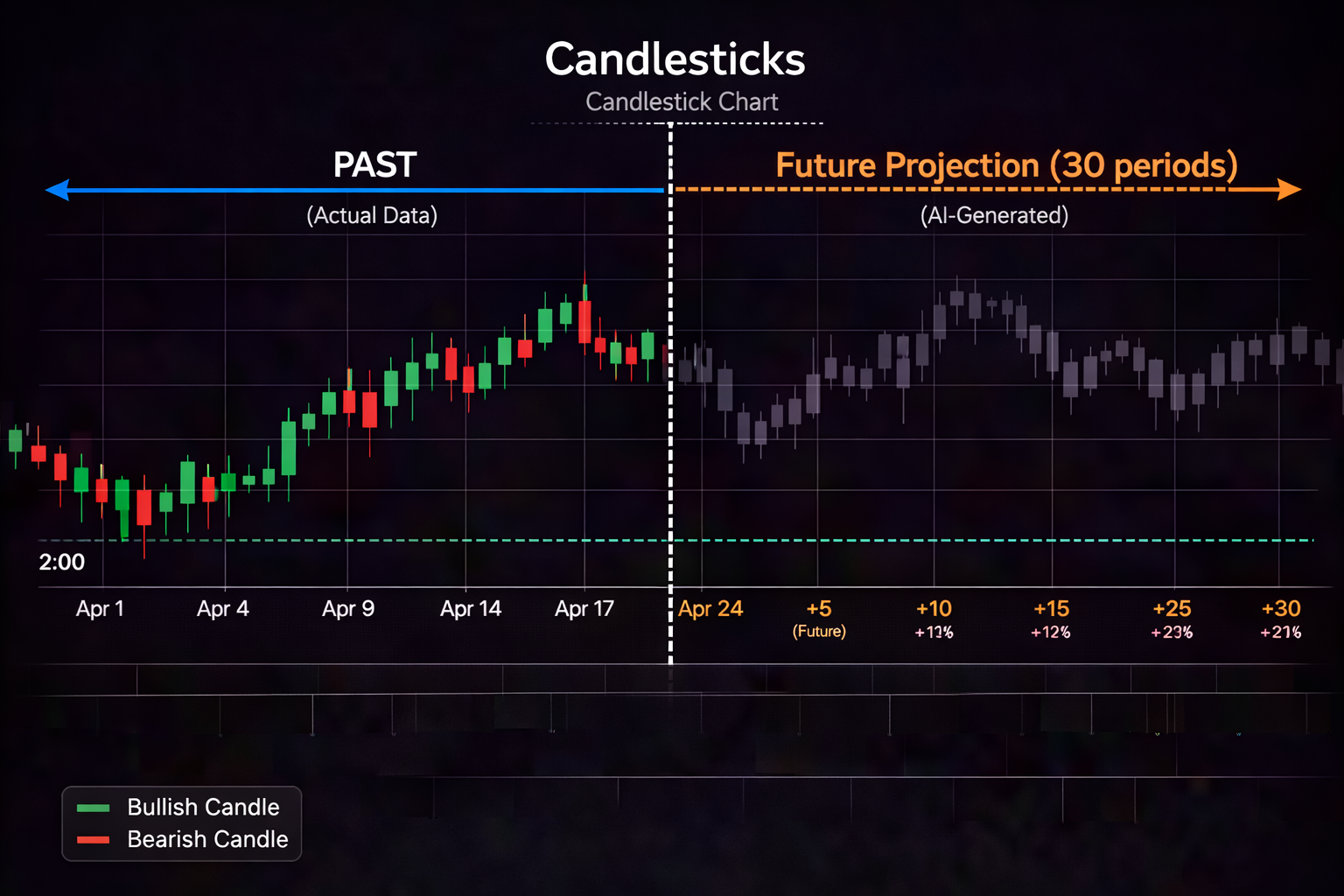
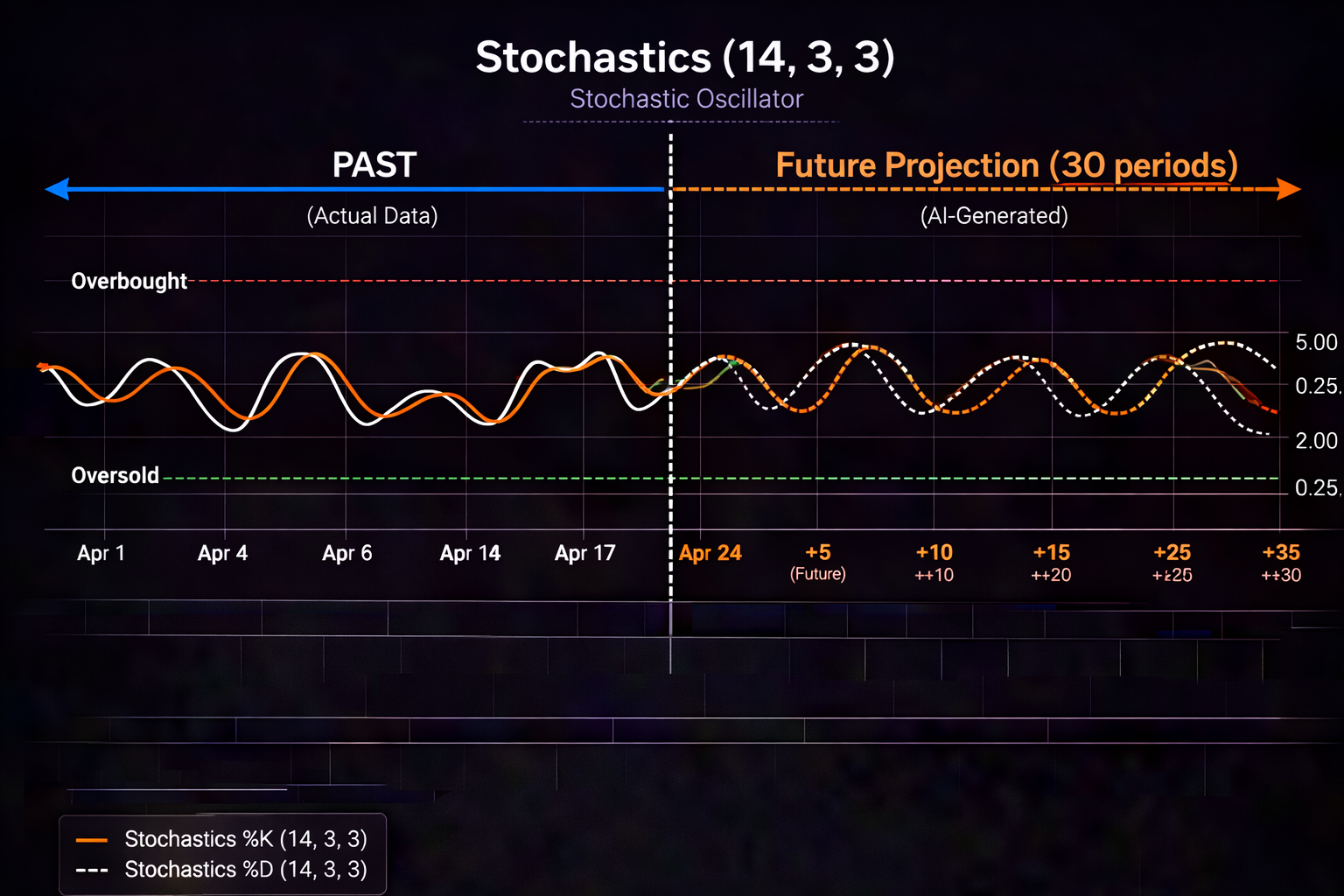
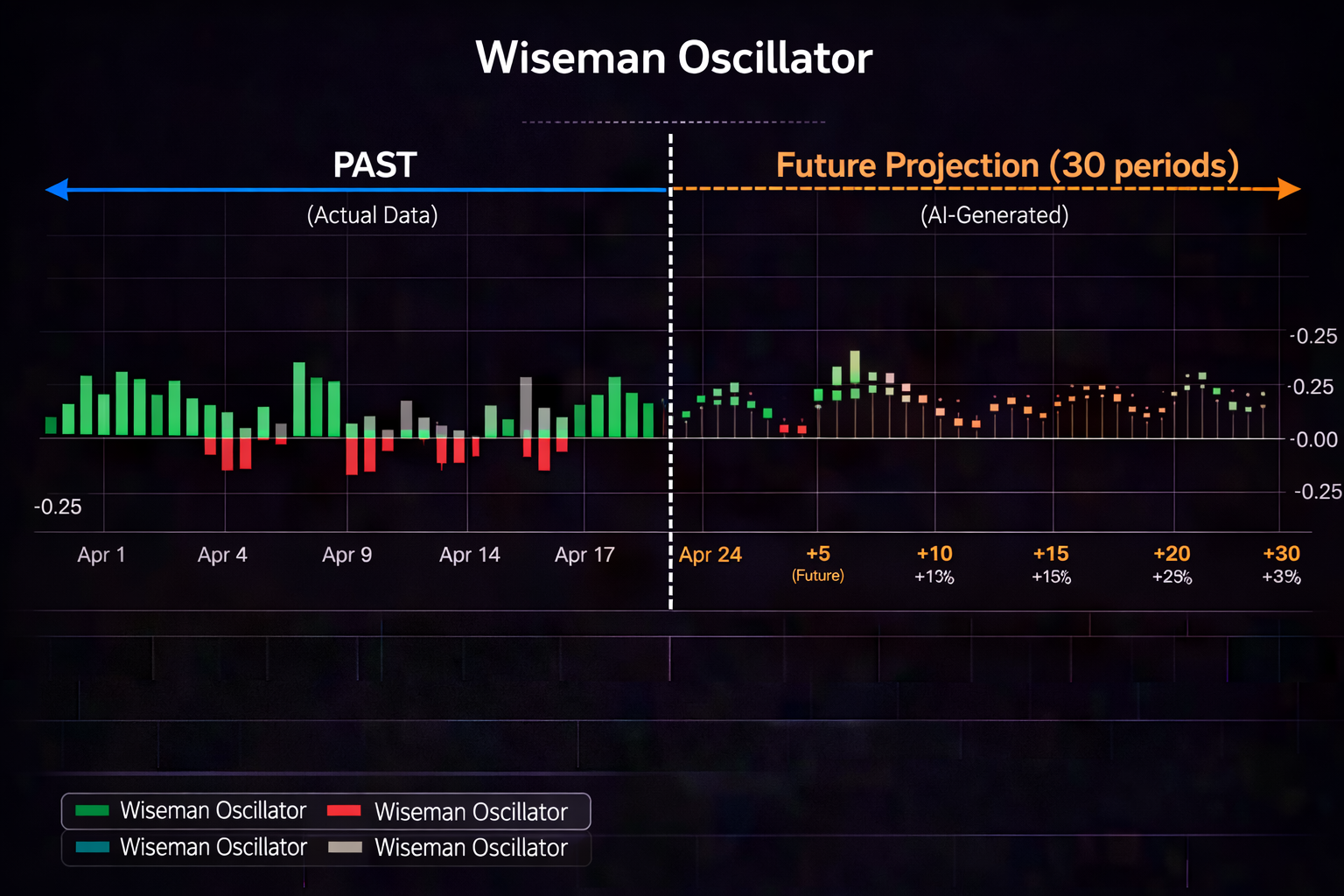
Watch PredictIndicators.ai on a NinjaTrader 8 chart — predicted candlesticks and indicators, 30 bars into the future (MetaTrader 5 too):
Questions NinjaTrader 8 and MetaTrader 5 traders ask
Forex meta 4 PredictIndicators.ai runs on MetaTrader 5 and NinjaTrader 8, not MetaTrader 4 — indicators built for one do not run on the other. Most brokers offer the same account in MetaTrader 5. MT4 vs MT5 guide →
MetaTrader 4 automated trading PredictIndicators.ai runs on MetaTrader 5 and NinjaTrader 8, not MetaTrader 4 — indicators built for one do not run on the other. Most brokers offer the same account in MetaTrader 5. MT4 vs MT5 guide →
MT5 brokers usa Fees, accounts, demo trading and app features are set by NinjaTrader or by your MetaTrader 5 broker. PredictIndicators.ai adds predicted candlesticks and indicators, 30 bars ahead, on top of the charts you already use. Setup guide →
Educational purposes only — predictions are not certainties or financial advice.
In this comprehensive walkthrough, we'll guide you through every step of setting up AI trading plugins in NinjaTrader 8. Whether you're installing PredictIndicators.ai or similar tools, this guide covers installation, configuration, chart optimization, and best practices to ensure you're getting the most from your AI enhanced trading setup.
Why Add AI to NinjaTrader 8?
Before diving into the setup process, it's worth understanding why AI plugins transform how you trade on NinjaTrader 8:
Predictive Analytics: Traditional indicators tell you what has already happened. AI predicts where indicators and price are heading 20-30 bars into the future.
Multi Indicator Synthesis: AI analyzes MACD, Stochastics, ATR, directional movement, and candlestick patterns simultaneously, giving you a holistic view of market conditions.
Time Saving Automation: Instead of manually scanning dozens of charts for setups, AI continuously monitors and alerts you when high probability conditions align.
Cross Platform Flexibility: Modern AI tools like PredictIndicators.ai work not just on NinjaTrader 8 desktop, but also on MetaTrader 5, iPhone, iPad, Android, Mac, and web platforms—allowing you to maintain consistent strategies across devices.
Prerequisites: What You Need Before Starting
Before installing any AI plugin, ensure you have the following in place:
1. NinjaTrader 8 Installed and Updated
Download the latest version of NinjaTrader 8 from the official NinjaTrader website. AI plugins typically require recent versions to function properly, so make sure you're running the most current release.
2. Active Trading Account
You'll need a funded trading account connected to NinjaTrader 8. This can be through NinjaTrader Brokerage or a supported third party broker like Tradovate, Interactive Brokers, or others.
3. AI Plugin Subscription
Purchase and activate your AI trading tool subscription. For PredictIndicators.ai, this involves creating an account at predictindicators.ai and obtaining your license credentials.
4. System Requirements
Ensure your computer meets the requirements:
Windows 10 or later (NinjaTrader 8 is Windows only for desktop)
Minimum 8GB RAM (16GB recommended)
Solid state drive (SSD) for optimal performance
Stable internet connection (AI tools require real time data feeds)
Dual monitors recommended for serious trading
Step by Step Installation Guide
Step 1: Download the AI Plugin Package
Log into your AI trading tool account (e.g., PredictIndicators.ai) and navigate to the downloads section. Download the NinjaTrader 8 plugin package. This typically comes as a .zip file containing:
Custom indicator files (.cs or compiled .dll)
Installation instructions
License activation utilities
Documentation and user guides
Step 2: Locate Your NinjaTrader 8 User Data Directory
NinjaTrader 8 stores custom indicators and add ons in a specific user data directory. To find it:
Open NinjaTrader 8
Go to Tools → Options
Click on the General tab
Look for "User Data Directory" path—this is typically something like: C:\Users\[YourUsername]\Documents\NinjaTrader 8\bin\Custom
Step 3: Install Custom Indicators
Navigate to the Custom folder structure:
Open File Explorer and go to your User Data Directory
Navigate to the bin\Custom folder
If you don't see an Indicator folder, create one
Copy your AI plugin indicator files into the Indicator folder
If the package includes Strategy files, copy those to the Strategy folder
Important: Don't modify any existing NinjaTrader system files. Only add files to the Custom folder structure.
Step 4: Recompile NinjaTrader
After copying the files, you need to recompile NinjaTrader to recognize the new indicators:
Return to NinjaTrader 8
Go to Tools → NinjaScript Editor
In the Editor window, right click anywhere in the left panel
Select Compile from the context menu
Wait for the compilation to complete (this may take 30-60 seconds)
Check the output window at the bottom for any errors
If compilation succeeds without errors, your AI indicators are now installed and ready to use. If you see errors, review the installation instructions carefully and ensure all files were copied correctly.
Step 5: Activate Your License
Most AI plugins require license activation:
Open a chart in NinjaTrader 8
Right click on the chart and select Indicators
Find your newly installed AI indicator in the list (e.g., "PredictIndicators" or similar)
Select it and click Add
In the indicator settings, look for a license or activation section
Enter your license key or credentials from your AI tool account
Click Activate or Validate
Once activated, the indicator should display real time predictions on your chart. Some tools may require an internet connection for initial activation, then function offline afterward.
Configuring Your AI Indicators
Proper configuration is crucial for getting accurate, actionable signals from your AI plugin. Here's how to optimize your settings:
Understanding Core Parameters
Most AI trading plugins have several key configuration options:
1. Prediction Horizon
This determines how far into the future the AI predicts. Common options:
Short term (10-20 bars): Best for scalping and very short term trades
Medium term (20-40 bars): Ideal for typical day trading setups
Long term (40-60 bars): Better for swing trading and identifying larger trends
Recommendation: Start with 30 bars for general day trading. Adjust based on your typical holding period.
2. Indicators to Predict
AI tools typically allow you to select which indicators to predict:
MACD (Moving Average Convergence Divergence)
Stochastics (momentum oscillator)
ATR (Average True Range for volatility)
Directional Movement (trend strength)
Candlestick patterns
Recommendation: Enable all indicators initially. As you gain experience, you may choose to focus on the ones most relevant to your strategy.
3. Visual Display Options
Configure how predictions appear on your chart:
Color schemes: Bullish predictions in green, bearish in red (or customize to your preference)
Opacity: Adjust transparency so predictions don't obscure price action
Label visibility: Show numerical values or keep it visual only
Optimizing for Your Trading Style
Different trading styles benefit from different configurations:
Scalpers
Prediction horizon: 10-15 bars
Focus on: Fast moving indicators like Stochastics and short term MACD
Timeframe: 1 minute or 2 minute charts
Alerts: Enable immediate notifications for prediction changes
Day Traders
Prediction horizon: 25-35 bars
Focus on: All indicators for comprehensive analysis
Timeframe: 5 minute or 15 minute charts
Alerts: Set for high confidence setups only
Swing Traders
Prediction horizon: 40-60 bars
Focus on: Trend indicators and longer term patterns
Timeframe: 1 hour or 4 hour charts
Alerts: Daily summary alerts
Setting Up Your First AI Enhanced Chart
Now that your plugin is installed and configured, let's set up a working chart:
Step 1: Open a New Chart
In NinjaTrader 8, go to File → New → Chart
Select your instrument (e.g., ES for E mini S&P 500, NQ for Nasdaq, or a forex pair)
Choose your preferred timeframe (5 minute is common for day trading)
Select your data provider (CQG, Rithmic, or your broker's feed)
Click OK
Step 2: Add Your AI Indicator
Right click on the chart background
Select Indicators
Find your AI plugin in the list (e.g., "PredictIndicators.ai")
Select it and click Add
The indicator should now appear on your chart, displaying AI predictions
Step 3: Configure Display Settings
With the indicator selected:
Adjust visual parameters (colors, line thickness, opacity)
Set your prediction horizon (e.g., 30 bars)
Choose which sub panels to display (some indicators appear in separate panels below the main chart)
Click OK to apply settings
Step 4: Add Traditional Indicators for Comparison
To maximize the value of AI predictions, overlay traditional indicators:
Right click chart → Indicators
Add standard MACD, RSI, or moving averages
Compare real time indicator values with AI predictions
This helps you understand the accuracy and timing of AI predictions
Creating Alerts and Notifications
One of the most powerful features of AI plugins is automated alerts. Here's how to set them up:
Configuring Price Alerts
Right click your chart
Select Alerts → New Alert
Choose alert type (e.g., "Indicator condition")
Select your AI indicator from the dropdown
Set the condition (e.g., "MACD prediction turns bullish")
Limit to high probability setups: Only alert on conditions with strong historical performance
Use multiple confirmations: Alert only when 2-3 indicators align, not on single signals
Time based filtering: Set alerts to activate only during your trading hours
Cross platform sync: If using PredictIndicators.ai, configure alerts to work across desktop and mobile so you never miss a setup
Optimizing Performance and Speed
AI plugins add computational overhead. Here's how to keep NinjaTrader 8 running smoothly:
System Optimization
Disable unused indicators: Each active indicator consumes resources. Remove any you're not actively using.
Limit chart count: Running AI on 10-15 charts simultaneously is reasonable; 50+ charts may cause lag.
Use SSD storage: NinjaTrader 8 loads significantly faster from SSD versus traditional hard drives.
Close unnecessary applications: Dedicate your trading computer to trading only during market hours.
NinjaTrader Specific Settings
Reduce chart refresh rate: Go to Tools → Options → Chart Settings and adjust refresh rate if experiencing lag
Optimize data feed: Use the most efficient data provider for your region and instruments
Clear cached data: Periodically clear historical data cache to free up memory
Testing and Validation
Before trading live with your AI plugin, thorough testing is essential:
Step 1: Historical Replay Mode
NinjaTrader 8's Market Replay feature allows you to test strategies on historical data:
Go to Tools → Historical Data → Market Replay
Download historical data for your instrument
Load the replay session and enable your AI indicator
Step through historical price action and observe how AI predictions performed
Note accuracy rates and typical lead times
Step 2: Paper Trading
Test your AI enhanced strategy in real time without risking capital:
Enable NinjaTrader's Simulation mode
Trade with your AI indicators as you would in live markets
Keep detailed records of signals, entries, exits, and outcomes
Trade for at least 2-4 weeks to gather meaningful data
Step 3: Performance Metrics to Track
During testing, monitor:
Signal accuracy: Percentage of AI predicts that correctly predicted price direction
Lead time: Average number of bars between AI signal and actual price movement
Win rate: Percentage of trades based on AI signals that were profitable
Risk reward ratio: Average profit per winning trade versus average loss per losing trade
Troubleshooting Common Issues
Even with careful setup, you may encounter issues. Here are common problems and solutions:
Issue 1: Indicator Not Appearing in List
Cause: Files not copied to correct folder or compilation failed.
Solution: Verify files are in Documents\NinjaTrader 8\bin\Custom\Indicator and recompile NinjaScript Editor.
Issue 2: License Activation Fails
Cause: Internet connection issues or incorrect credentials.
Solution: Check internet connectivity, verify license key, and ensure your AI tool account is active.
Issue 3: Slow Chart Performance
Cause: Too many indicators or insufficient system resources.
Solution: Reduce number of active charts, disable unused indicators, upgrade RAM or switch to SSD.
Issue 4: Predictions Seem Inaccurate
Cause: Market conditions changed or parameters need adjustment.
Solution: Review your prediction horizon settings, ensure data feed is stable, and consider recalibrating for current market volatility.
Advanced Tips for Power Users
Once you're comfortable with basic setup, try these advanced techniques:
Multiple Timeframe Analysis
Run AI indicators on multiple timeframes simultaneously:
Set up a 5 minute chart with 20 bar predictions for entries
Set up a 15 minute chart with 40 bar predictions for trend direction
Only take trades where both timeframes align
Custom Alert Conditions
Create sophisticated alert logic:
Alert only when MACD and Stochastics both prediction bullish
Add volume confirmation condition
Filter alerts to specific trading hours
Integration with Automated Strategies
For advanced users, AI predictions can feed into automated trading strategies:
Use NinjaTrader's Strategy Builder to create rules based on AI signals
Backtest automated strategies using historical AI data
Deploy semi automated systems that require manual confirmation before execution
Maintaining Your Setup
Regular maintenance ensures optimal performance:
Weekly Tasks
Review alert performance and adjust thresholds if needed
Check for plugin updates from your AI tool provider
Clean up old charts and workspaces
Monthly Tasks
Review trading journal and identify patterns in AI signal performance
Recalibrate parameters if market conditions have shifted significantly
Backup your NinjaTrader configuration and custom indicators
Quarterly Tasks
Comprehensive strategy review
Compare performance across different instruments and timeframes
Consider adding new tools or indicators based on evolving needs
Cross Platform Considerations
Modern trading isn't confined to a single desktop setup. PredictIndicators.ai and similar tools work across:
NinjaTrader 8 (Windows desktop): Primary trading station with full functionality
MetaTrader 5: Alternative platform for forex and multi asset trading
iPhone and iPad: Monitor positions and receive alerts on the go
Android devices: Same capabilities as iOS for Android users
Mac: Full desktop experience for macOS users
Web platform: Browser based access from any device
This cross platform flexibility means you can set up your primary workstation on NinjaTrader 8, then monitor and manage positions from mobile devices when away from your desk. The AI predictions remain consistent across all platforms, ensuring you're working with the same data whether at home or traveling.
Getting Started: Your First Week Plan
To help you hit the ground running, here's a suggested first week plan:
Day 1-2: Installation and Setup
Install your AI plugin following this guide
Configure basic parameters
Set up one chart with your primary instrument
Day 3-4: Observation and Learning
Watch AI predictions without trading
Compare predictions to actual price movements
Adjust parameters based on observations
Day 5-7: Paper Trading
Begin simulated trading with AI signals
Keep detailed records of each trade
Refine your entry and exit rules
Conclusion
Setting up AI plugins in NinjaTrader 8 is a straightforward process that can dramatically enhance your trading capabilities. By following this walkthrough, you've learned how to install, configure, and optimize AI indicators to work seamlessly with your existing trading workflow.
Remember that AI is a tool to augment your skills, not replace them. The most successful traders combine AI's predictive power with their own market knowledge, discipline, and risk management expertise. Start with conservative settings, test thoroughly, and gradually integrate AI signals into your live trading as you build confidence.
Whether you're trading futures on NinjaTrader 8, forex on MetaTrader 5, or monitoring markets from your iPhone, AI powered tools like PredictIndicators.ai are now accessible across all major platforms. The technology is here, it's proven, and it's ready to give you an edge in today's competitive markets.
Take the time to set up properly, test thoroughly, and trade responsibly. Your future self will thank you.
Trading Disclaimer: This content is for educational and informational purposes only and does not constitute financial advice, investment recommendations, or trading instructions. Trading financial instruments involves substantial risk of loss and is not suitable for all investors. Past performance is not indicative of future results. Always conduct your own research and consult with a licensed financial advisor before making any trading or investment decisions. PredictIndicators.ai is a software tool that provides predictive analytics; it does not guarantee profits or protect against losses.