MetaTrader 5 has become the platform of choice for forex traders and multi asset traders worldwide. Its powerful Strategy Tester, flexible Expert Advisor (EA) framework, and multi currency capabilities make it ideal for automated trading. But in 2026, running a basic EA without AI enhancement is like driving a sports car in first gear—you're leaving performance on the table.
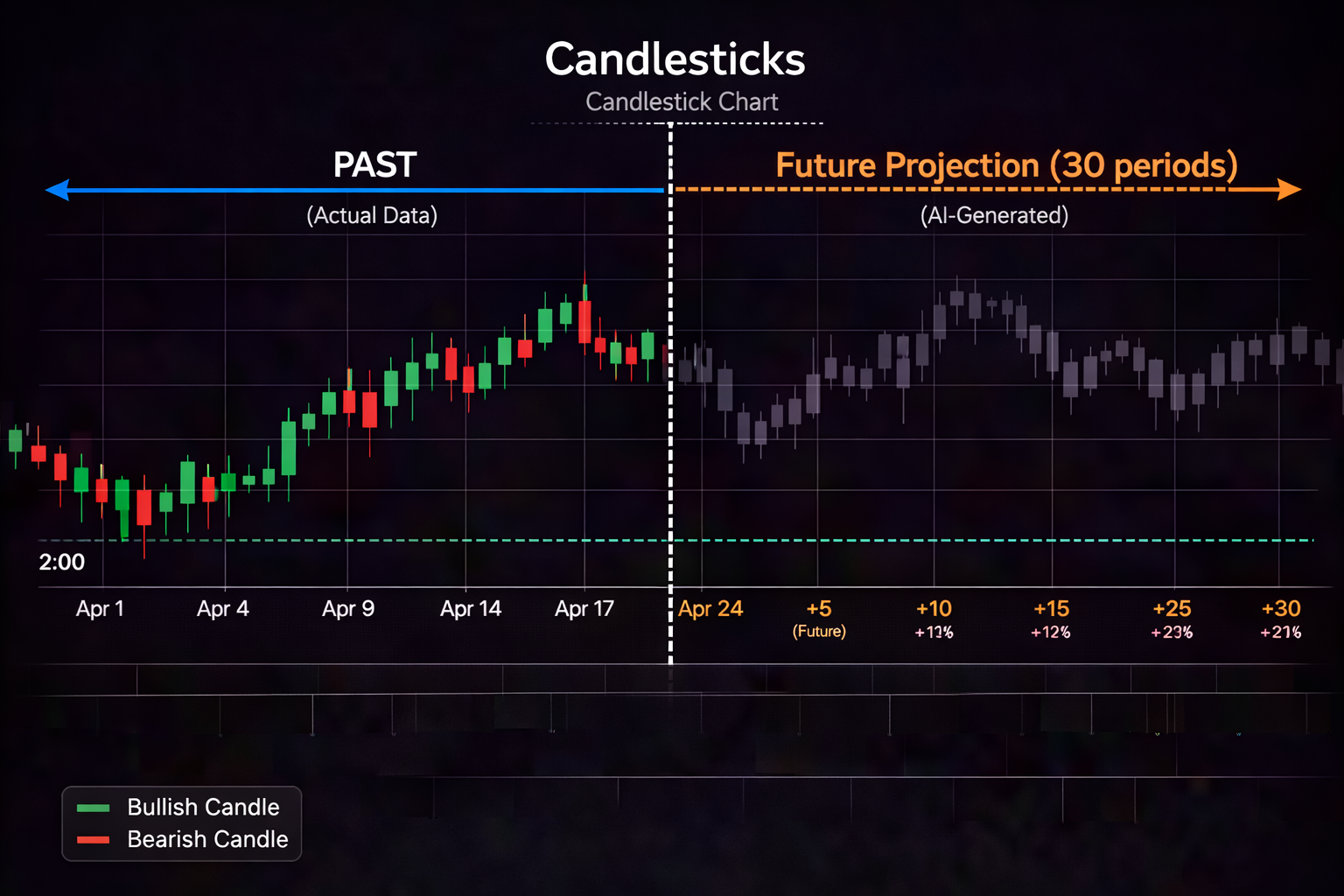
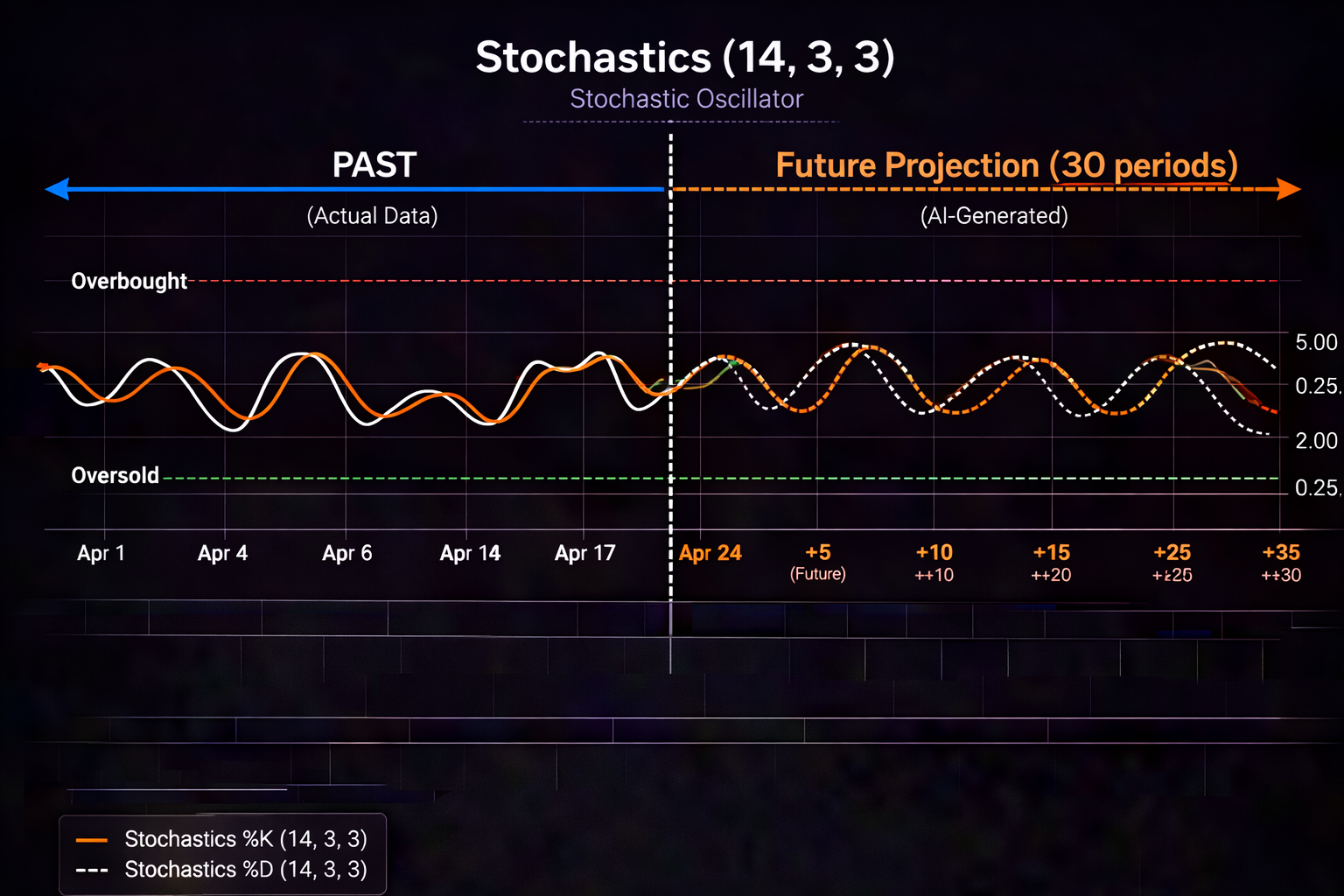
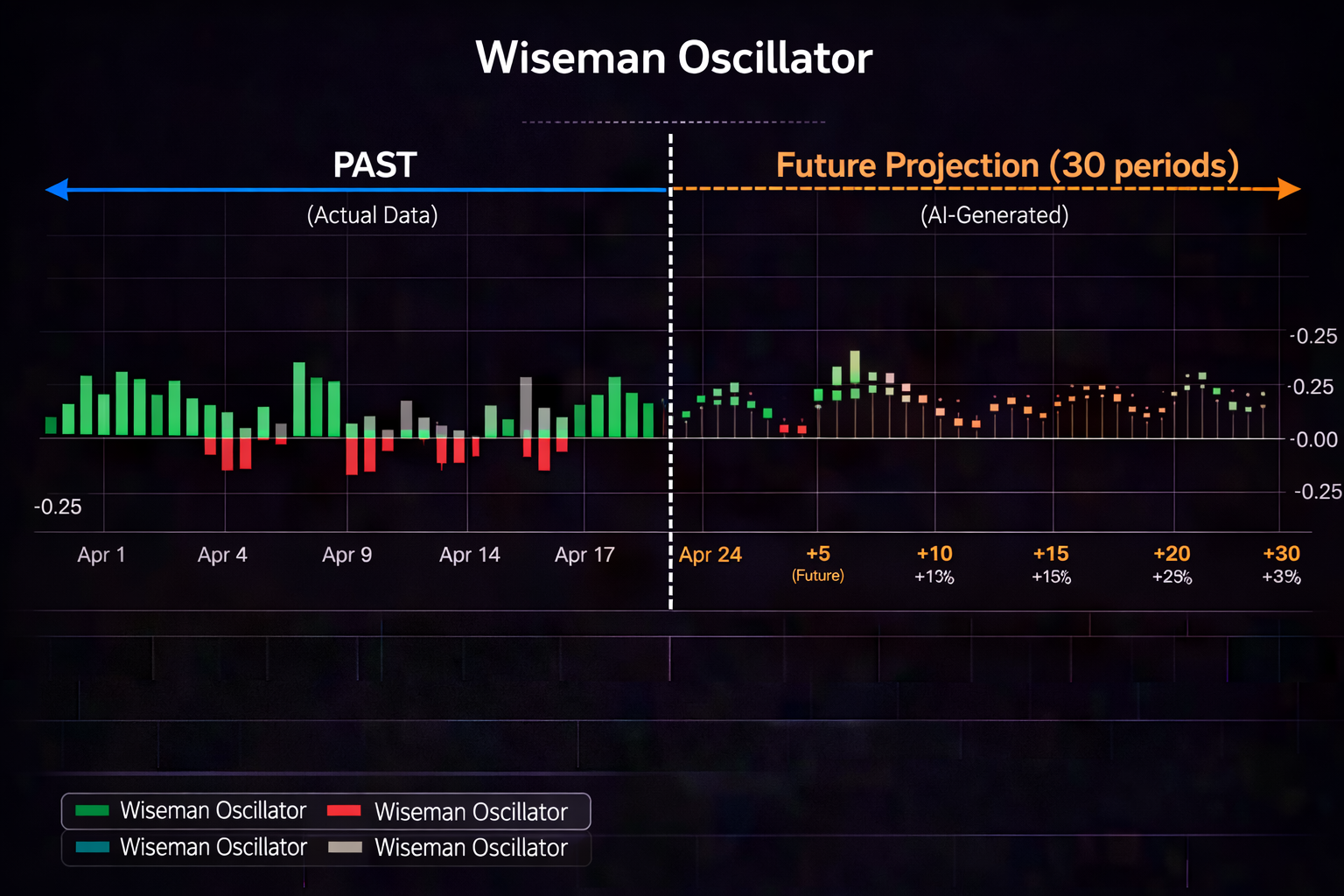
Watch PredictIndicators.ai on a NinjaTrader 8 chart — predicted candlesticks and indicators, 30 bars into the future (MetaTrader 5 too):
Meta 5 On MetaTrader 5, PredictIndicators.ai draws predicted candlesticks and indicators 30 bars into the future, right on your charts. MetaTrader 5 guide →
NinjaTrader com Fees, accounts, demo trading and app features are set by NinjaTrader or by your MetaTrader 5 broker. PredictIndicators.ai adds predicted candlesticks and indicators, 30 bars ahead, on top of the charts you already use. Setup guide →
NinjaTrader On NinjaTrader 8, PredictIndicators.ai draws predicted candlesticks and indicators 30 bars into the future, right on your charts. NinjaTrader 8 guide →
Educational purposes only — predictions are not certainties or financial advice.
This comprehensive guide walks you through optimizing MetaTrader 5 Expert Advisors with AI powered strategies. Whether you're building your first EA or refining an existing trading system, you'll learn how to integrate predictive analytics, improve backtesting accuracy, and deploy automated systems that adapt to changing market conditions.
Traditional Expert Advisors operate on fixed rules: "If RSI crosses above 30, buy." The problem is that markets aren't static. What worked last month may fail this month as volatility shifts, trends change, and market dynamics evolve.
AI enhanced EAs solve this problem by:
Tools like PredictIndicators.ai bring these capabilities to MetaTrader 5, working seamlessly alongside your existing EAs or as the foundation for new automated systems. The same AI tools also work on NinjaTrader 8, iPhone, iPad, Android, Mac, and web platforms—giving you flexibility across your entire trading operation.
Before optimizing, it's essential to understand how EAs function within MetaTrader 5:
Every Expert Advisor consists of several key functions:
OnInit(): Runs once when the EA is attached to a chart. Used for initialization and parameter validation.OnTick(): Executes on every new price tick. This is where most trading logic resides.OnTimer(): Runs at specified intervals (useful for time based actions).OnTrade(): Handles trade transaction events.OnDeinit(): Runs when the EA is removed from the chart. Used for cleanup.AI integration typically happens in the OnTick() function, where your EA:
Let's walk through creating a basic AI enhanced Expert Advisor from scratch. This example uses PredictIndicators.ai style predictions, but the principles apply to any AI integration.
MetaTrader 5 includes MetaEditor, a built in development environment:
F4 or go to Tools → MetaQuotes Language EditorMetaEditor creates a basic EA template with essential functions already defined.
Input parameters allow you to optimize and adjust your EA without recompiling. Add these at the top of your EA:
input group "AI Settings"
input int AIForecastBars = 30;           // Bars to predict ahead
input int AIConfidenceThreshold = 75;    // Minimum confidence % to trade

input group "Risk Management"
input double LotSize = 0.1;              // Trade size in lots
input int StopLoss = 50;                 // Stop loss in points
input int TakeProfit = 100;              // Take profit in points
input int MaxDailyTrades = 5;            // Maximum trades per day

input group "Trading Hours"
input int StartHour = 8;                 // Trading start hour (server time)
input int EndHour = 20; // Trading end hour (server time)You'll need a function to retrieve AI predictions. This typically involves calling an external API or reading from a custom indicator. Here's a simplified example:
// Global variables to store AI predictions
double aiMACDForecast = 0;
double aiStochForecast = 0;
double aiATRCast = 0;

// Function to retrieve AI predictions
bool GetAIForecasts()
{
    // In practice, this would call your AI service
    // For PredictIndicators.ai, this reads from the custom indicator

    // Example: Read AI prediction from a custom buffer
    int macdHandle = iCustom(_Symbol, _Period, "PredictIndicators", 0);
    if(macdHandle == INVALID_HANDLE) return false;

    if(CopyBuffer(macdHandle, 0, 0, 1, aiMACDForecast) < 1) return false;
    if(CopyBuffer(macdHandle, 1, 0, 1, aiStochForecast) < 1) return false;
    if(CopyBuffer(macdHandle, 2, 0, 1, aiATRCast) < 1) return false;

    return true;
}Now build your core trading logic that incorporates AI predictions:
void OnTick()
{
    // Check trading hours
    MqlDateTime timeNow;
    TimeToStruct(TimeCurrent(), timeNow);
    if(timeNow.hour < StartHour || timeNow.hour >= EndHour) return;

    // Check if we've reached max daily trades
    if(CountTodayTrades() >= MaxDailyTrades) return;

    // Get AI predictions
    if(!GetAIForecasts()) return;

    // Check for existing positions
    if(PositionsTotal() > 0) return; // Only one position at a time for this example

    // Evaluate long entry conditions
    if(aiMACDForecast > 0 && aiStochForecast > 0 && aiATRCast < 1.5)
    {
        // All AI indicators forecast bullish with reasonable volatility
        ExecuteTrade(ORDER_TYPE_BUY);
    }

    // Evaluate short entry conditions
    if(aiMACDForecast < 0 && aiStochForecast < 0 && aiATRCast < 1.5)
    {
        // All AI indicators forecast bearish with reasonable volatility
        ExecuteTrade(ORDER_TYPE_SELL);
    }
}void ExecuteTrade(ENUM_ORDER_TYPE orderType)
{
MqlTradeRequest request = {};
MqlTradeResult result = {};
request.action = TRADE_ACTION_DEAL;
request.symbol = _Symbol;
request.volume = LotSize;
request.type = orderType;
request.price = (orderType == ORDER_TYPE_BUY) ? SymbolInfoDouble(_Symbol, SYMBOL_ASK) : SymbolInfoDouble(_Symbol, SYMBOL_BID);
request.sl = request.price - (orderType == ORDER_TYPE_BUY ? StopLoss : -StopLoss) * _Point;
request.tp = request.price + (orderType == ORDER_TYPE_BUY ? TakeProfit : -TakeProfit) * _Point;
request.deviation = 10;
request.magic = 123456; // Unique identifier for this EA
if(!OrderSend(request, result))
{
Print("Order send failed: ", GetLastError());
}
else
{
Print("Trade executed successfully: ", result.order);
}
}Include utility functions like trade counting:
int CountTodayTrades()
{
    int count = 0;
    MqlDateTime timeNow, tradeTime;
    TimeToStruct(TimeCurrent(), timeNow);

    HistorySelect(0, TimeCurrent());

    for(int i = HistoryDealsTotal() - 1; i >= 0; i--)
    {
        ulong ticket = HistoryDealGetTicket(i);
        if(HistoryDealGetString(ticket, DEAL_SYMBOL) != _Symbol) continue;
        if(HistoryDealGetInteger(ticket, DEAL_MAGIC) != 123456) continue;

        TimeToStruct(HistoryDealGetInteger(ticket, DEAL_TIME), tradeTime);

        if(tradeTime.day == timeNow.day && tradeTime.month == timeNow.month && tradeTime.year == timeNow.year)
        {
            count++;
        }
    }

    return count;
}MetaTrader 5's Strategy Tester is one of its most powerful features. Here's how to use it effectively for AI enhanced EAs:
Ctrl+R or go to View → Strategy TesterMT5 offers several optimization approaches:
Ideal for initial parameter discovery. The genetic algorithm quickly identifies promising parameter ranges without testing every combination.
Tests every possible parameter combination. More thorough but significantly slower. Use this only after narrowing parameter ranges with the genetic algorithm.
Choose what to optimize for:
For AI enhanced EAs, focus on these parameters:
After optimization completes:
Quality backtesting is crucial for EA development. Follow these guidelines:
Download high quality tick data from your broker or a reputable data provider. Poor data quality leads to inaccurate backtest results.
Your EA should perform across different market environments:
Always factor in spreads and commissions:
Overfitting occurs when your EA is too closely tailored to historical data and fails in live markets:
Before going live:
MT5 allows testing EAs across multiple currency pairs simultaneously:
This approach helps you find parameters that generalize well rather than working only on a single pair.
While MT5 doesn't include built in Monte Carlo testing, you can simulate it by:
This reveals how robust your EA is to varying market conditions.
Test your EA under extreme conditions:
AI enhanced EAs still need robust risk management. Never rely solely on AI predictions for risk decisions.
Use fixed fractional sizing or volatility adjusted position sizing:
double CalculateLotSize(double accountBalance, double riskPercent, double stopLossPoints)
{
    double riskAmount = accountBalance * riskPercent / 100;
    double tickValue = SymbolInfoDouble(_Symbol, SYMBOL_TRADE_TICK_VALUE);
    double lotSize = riskAmount / (stopLossPoints * tickValue);

    // Normalize to broker's lot step
    double lotStep = SymbolInfoDouble(_Symbol, SYMBOL_VOLUME_STEP);
    lotSize = MathFloor(lotSize / lotStep) * lotStep;

    return lotSize;
}Implement hard stops on total drawdown:
void CheckDrawdownLimits()
{
    double balance = AccountInfoDouble(ACCOUNT_BALANCE);
    double initialBalance = 10000; // Your starting balance
    double currentDrawdown = (initialBalance - balance) / initialBalance * 100;

    if(currentDrawdown > 20) // 20% max drawdown
    {
        Print("Maximum drawdown reached. EA halted.");
        // Disable further trading
        ExpertRemove();
    }
}Stop trading after a certain daily loss:
double GetTodayProfit()
{
    double profit = 0;
    MqlDateTime timeNow, tradeTime;
    TimeToStruct(TimeCurrent(), timeNow);

    HistorySelect(0, TimeCurrent());

    for(int i = HistoryDealsTotal() - 1; i >= 0; i--)
    {
        ulong ticket = HistoryDealGetTicket(i);
        if(HistoryDealGetString(ticket, DEAL_SYMBOL) != _Symbol) continue;
        if(HistoryDealGetInteger(ticket, DEAL_MAGIC) != 123456) continue;

        TimeToStruct(HistoryDealGetInteger(ticket, DEAL_TIME), tradeTime);

        if(tradeTime.day == timeNow.day && tradeTime.month == timeNow.month && tradeTime.year == timeNow.year)
        {
            profit += HistoryDealGetDouble(ticket, DEAL_PROFIT);
        }
    }

    return profit;
}Once testing is complete and you're satisfied with performance, it's time to deploy. Here's a safe deployment process:
When first going live:
Set up comprehensive logging:
void OnTick()
{
    // Existing trading logic...

    // Log key events
    Print("Tick received. AI predictions: MACD=", aiMACDForecast,
          " Stoch=", aiStochForecast, " ATR=", aiATRFcast);
}
Review logs daily to identify any issues or unexpected behavior.
Check:
Possible causes:
Solution: Review backtest assumptions, reduce position size, or re optimize with more recent data.
Check:
EA optimization is ongoing, not a one time task:
Modern AI trading tools like PredictIndicators.ai work across multiple platforms, giving you flexibility:
This cross platform consistency means you can develop and test on MT5, then apply similar strategies to futures on NinjaTrader—or monitor everything from your phone while traveling. The AI predictions remain consistent across platforms, providing a unified analytical foundation.
Optimizing MetaTrader 5 Expert Advisors with AI is both an art and a science. The technical skills—coding, backtesting, parameter optimization—are essential. But equally important are patience, discipline, and a commitment to continuous improvement.
Start small. Build a simple AI enhanced EA, test it thoroughly, and deploy conservatively. As you gain confidence and experience, you can expand to more sophisticated strategies, multi currency portfolios, and advanced risk management techniques.
Remember that AI is a tool to enhance your trading, not a magic bullet. The most successful automated traders combine AI's predictive power with sound risk management, realistic expectations, and ongoing education.
Whether you're trading forex on MetaTrader 5, futures on NinjaTrader 8, or managing positions from your iPhone, AI powered tools are now accessible to retail traders at an unprecedented level. The technology is proven, the platforms are robust, and the opportunity is real. The question is whether you're ready to take the next step in your trading evolution.
Trading Disclaimer: This content is for educational and informational purposes only and does not constitute financial advice, investment recommendations, or trading instructions. Trading financial instruments involves substantial risk of loss and is not suitable for all investors. Past performance is not indicative of future results. Automated trading carries additional risks including technical failures, connectivity issues, and execution delays. Always conduct your own research and consult with a licensed financial advisor before making any trading or investment decisions. PredictIndicators.ai is a software tool that provides predictive analytics; it does not guarantee profits or protect against losses.