iPhone Trading Screener: Best Indicators for Mobile Trading
By Robert · March 10, 2026 · Mobile Trading · 9 min read
If you're trading on an iPhone, you've probably struggled with the mobile trading app experience. The screen is small. Indicators crowd your chart. Switching between timeframes eats precious seconds when you're trying to catch an entry. And let's be honest — most desktop trading strategies don't translate well to mobile.
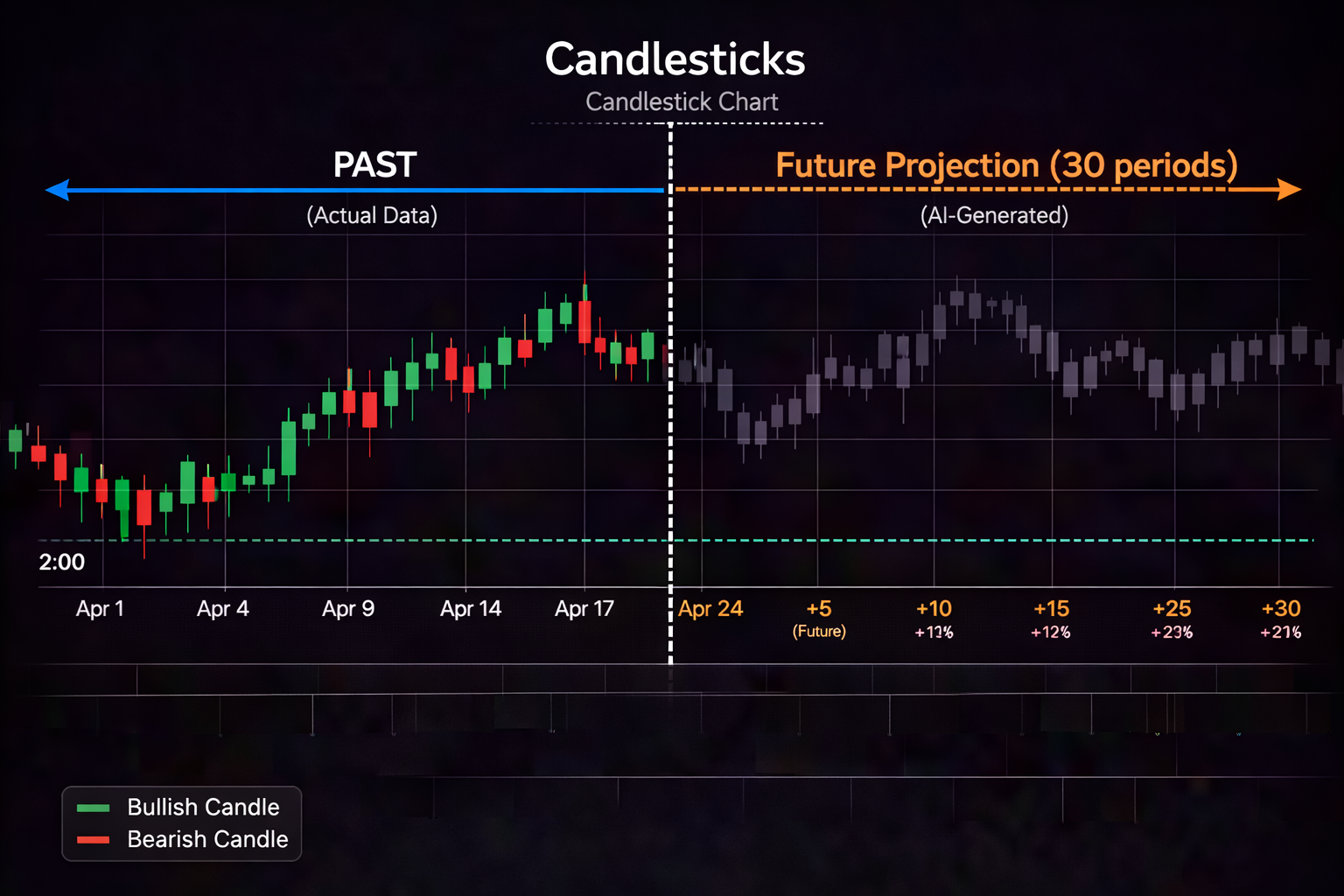
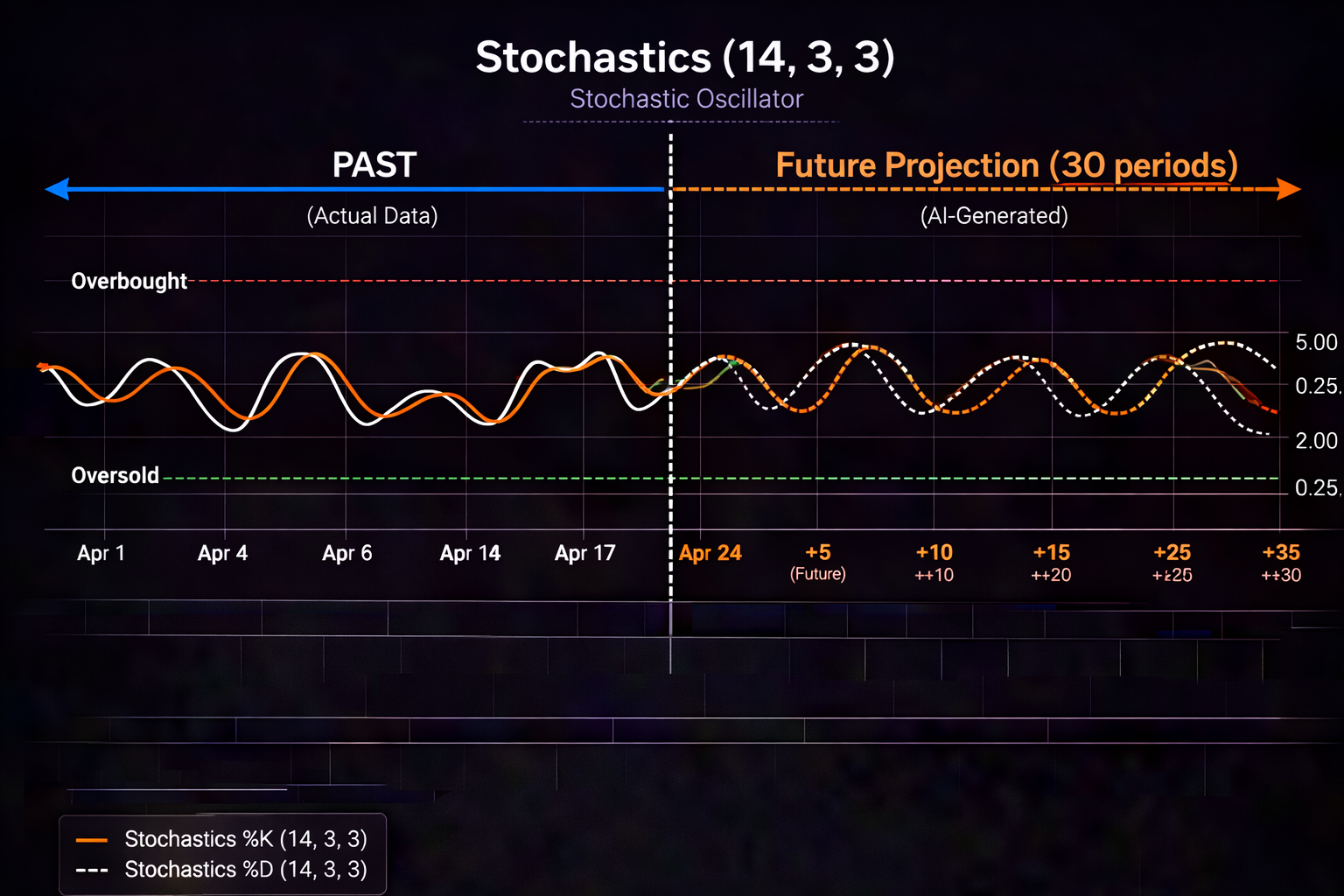
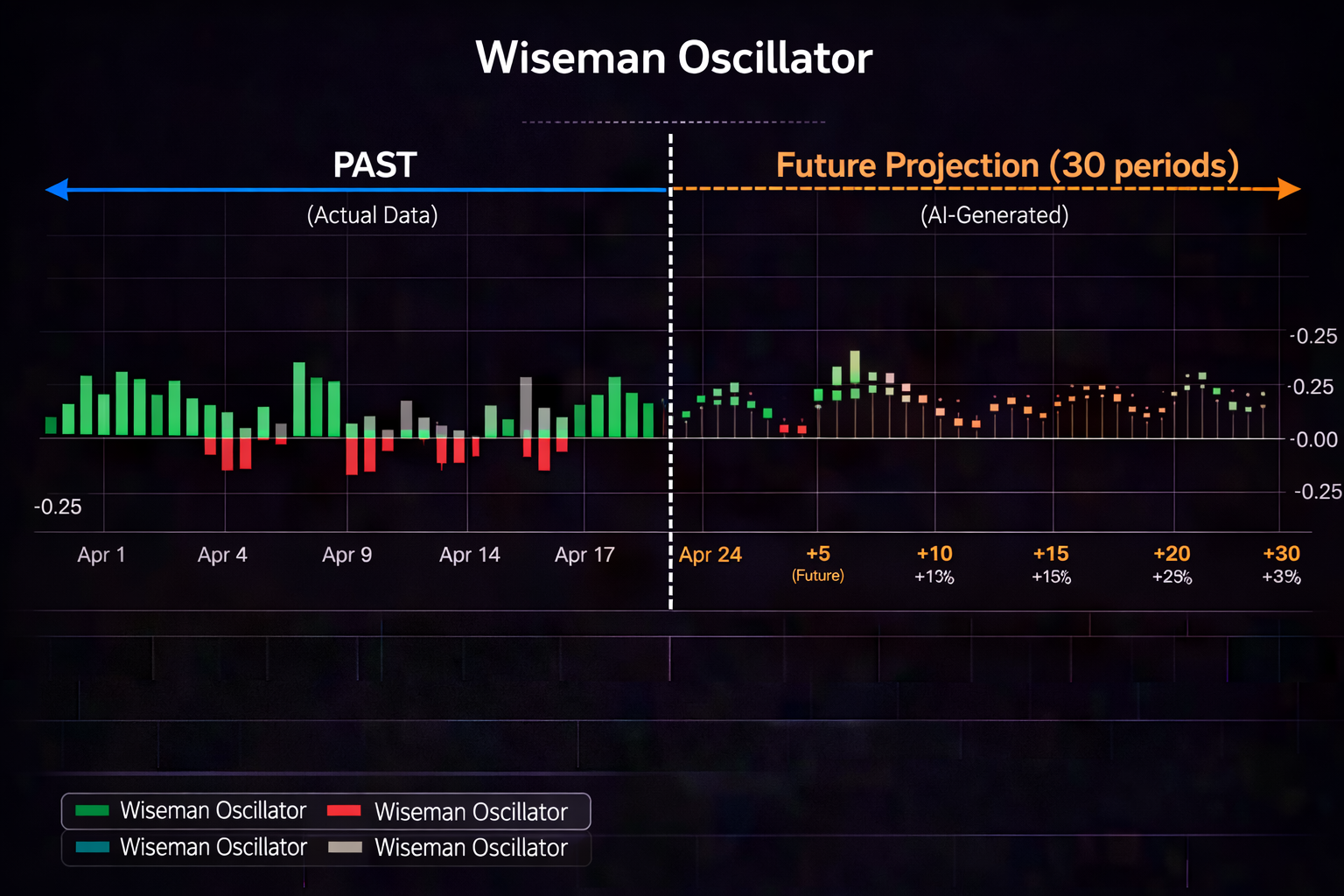
Watch PredictIndicators.ai on a NinjaTrader 8 chart — predicted candlesticks and indicators, 30 bars into the future (MetaTrader 5 too):
Questions NinjaTrader 8 and MetaTrader 5 traders ask
Best MT5 brokers Fees, accounts, demo trading and app features are set by NinjaTrader or by your MetaTrader 5 broker. PredictIndicators.ai adds predicted candlesticks and indicators, 30 bars ahead, on top of the charts you already use. Setup guide →
Best broker for MetaTrader 5 usa Fees, accounts, demo trading and app features are set by NinjaTrader or by your MetaTrader 5 broker. PredictIndicators.ai adds predicted candlesticks and indicators, 30 bars ahead, on top of the charts you already use. Setup guide →
Xm MT5 On MetaTrader 5, PredictIndicators.ai draws predicted candlesticks and indicators 30 bars into the future, right on your charts. MetaTrader 5 guide →
Educational purposes only — predictions are not certainties or financial advice.
But here's what most trading guides won't tell you: mobile trading isn't a compromise anymore. With the right setup, your iPhone 13-16 can become a legitimate trading workstation. The key is knowing which indicators actually work on small screens, how to layout your workspace efficiently, and when to use AI prediction to see signals before they form.
This guide covers everything: the best indicators for iPhone trading apps, screen layout strategies for different iPhone models, widget integration for instant market views, and how PredictIndicators.ai transforms your mobile workflow by predicting indicator values 30 bars ahead — so you're not reacting to lagging signals on a cramped display.
Why Mobile Trading Apps Need a Different Approach
Desktop traders have the luxury of space. They can stack six indicators, run multiple monitors, and keep detailed spreadsheets open. On iPhone, every pixel counts. What works on a 27 inch monitor becomes unusable on a 6.1 inch screen.
The mobile trading reality:
Screen real estate: iPhone 13-16 screens range from 6.1" to 6.7". You can't display 5 indicators without obscuring price action.
Touch precision: Tapping small indicator settings menus while markets move is frustrating and error prone.
Decision speed: Mobile traders are often on commutes, between meetings, or away from desks. You need glanceable signals, not complex analysis.
Battery and data: Running trading apps with multiple indicators drains battery fast. Cellular connections can lag during volatility.
The solution isn't to cram desktop strategies onto mobile. It's to simplify — fewer indicators, cleaner layouts, and predictive tools that give you conviction without needing 10 confirmation signals.
💡 Pro Tip
Mobile traders who succeed use 2-3 core indicators maximum. Anything more creates visual clutter and decision paralysis on small screens.
Best Indicators for iPhone Trading Apps (Tested on iPhone 13-16)
After testing dozens of indicators across popular iOS trading apps on iPhone 13, 14, 15, and 16 models, these are the ones that actually work on mobile:
1. MACD — But Simplified
Moving Average Convergence Divergence is powerful, but the default MACD panel in most trading apps eats up 40% of your screen. Here's the mobile fix:
Use histogram only mode — hide the signal line and MACD line, keep only the histogram. Takes 1/4 the vertical space.
Color code crossovers — set histogram to green when bullish, red when bearish. Instant visual read.
Precision matters: On iPhone, you're reading this in 2 second glances. Color changes are faster to process than line angles.
The problem: Even simplified, MACD is lagging. By the time you see the crossover on your iPhone, the move is already underway. This is where prediction changes everything.
2. RSI — With Mobile Friendly Levels
Relative Strength Index works well on mobile because it's a single line in a compact panel. Mobile optimization tips:
Only show 70/30 levels — remove the 50 line. You only care about extremes for reversals.
Thicken the RSI line — in your trading app settings, increase line width to 2px. Easier to track on small displays.
Use divergence alerts — set price alerts for RSI divergence. Get notified instead of watching constantly.
Mobile advantage: RSI's single panel layout is perfect for iPhone. But like MACD, it tells you what already happened — not what's coming.
3. Bollinger Bands — Cleanup Required
Bollinger Bands can clutter charts if you're not careful. Mobile setup:
Fade the bands — set band transparency to 40-50%. Price action stays visible.
Remove the middle line — the 20 SMA inside the bands is redundant on mobile. You know where it is.
Use squeeze alerts — Many trading apps offer Bollinger Band squeeze indicators that give you a mobile friendly badge when volatility is compressing.
4. Volume Profile (Fixed Range) — Use Sparingly
Volume profile shows where big trades happened. On mobile:
Use fixed range only — don't run the full session profile. Select the last 20-50 bars max.
Keep it horizontal — vertical volume bars crowd price action. Horizontal profile on the right edge is cleaner.
Check once per session — load volume profile at market open, then hide it. Don't keep it on screen all day.
Best for mobile trading: Extra 0.2-0.3" vs iPhone 15 means ~15% more chart visibility. Most usable iPhone for mobile trading.
Optimization: Enables 4 indicator layouts without crowding. Only iPhone where desktop style setups work.
🎯 Best iPhone for Trading Apps in 2026
iPhone 16 Pro Max (6.9") — largest screen, fastest chip, ProMotion. If you're serious about mobile trading, this is the weapon. iPhone 15 Pro is the budget alternative (90% of the capability at lower cost).
Screen Layout Strategies That Actually Work
Your indicator choices matter less than how you arrange them. Here are three battle tested layouts for different trading styles:
Layout 1: The Swing Trader (5-15 min timeframes)
Priority: Catching multi day moves. You don't need 1 minute precision.
Total screen usage: 30% indicators, 70% price action
Why it works: VWAP tells you if you're buying high or low. Stochastics gives fast reversal signals. Volume confirms conviction.
Layout 3: The Commuter Trader (30+ min timeframes)
Priority: Checking positions on trains, flights, between meetings. You need minimal distraction.
Setup:
Chart: 1 hour or 4 hour candles
Overlay: Nothing (clean price action)
Panel 1: RSI only (14 period, 70/30)
Use alerts: Push notifications from your trading app for key levels
Total screen usage: 15% indicator, 85% price action
Why it works: You're not actively trading — you're monitoring. One indicator + alerts = enough information without FOMO.
iPad Optimization: When Bigger Screens Change Everything
If you have an iPad (any model from iPad Air to iPad Pro), the game changes completely. You're no longer "mobile trading" — you're running a portable workstation.
iPad Advantages Over iPhone
Screen space: iPad Mini (8.3") = 36% more area than iPhone 16 Pro Max. iPad Pro 13" = 4x more space.
Split screen: Run your trading app + news feed + economic calendar simultaneously (iPadOS multitasking).
Apple Pencil: Mark up charts directly — draw support/resistance, annotate setups.
External monitor: iPad Pro with M series chips support external displays. Dual screen trading on the go.
iPad Trading App Layout (Full Advantage)
Portrait mode (all iPads):
Chart: 70% vertical space
MACD panel: 15%
RSI panel: 15%
Result: Same as iPhone, but labels/text are larger. Easier to read indicator values.
Landscape mode (iPad Pro 13" especially):
Chart: Left 60% of screen
Watchlist: Right 40% (10-15 symbols)
Overlay indicators only (no panels) — Bollinger Bands, VWAP
Result: Desktop style layout. Monitor multiple symbols without switching tabs.
Pro move: iPad Pro + Magic Keyboard + external monitor = triple screen trading setup that fits in a backpack. More portable than any laptop rig.
📱 iPad Layout Comparison
iPad Mini (8.3"): Use 3 indicator max layout (same as iPhone, but clearer)
iPad Air (11"/13"): Landscape mode with watchlist sidebar
iPad Pro (11"/13" M series): Full desktop layout + external monitor option
Widget Integration: Instant Market Views
iOS widgets for trading apps are underrated. You can see price action and indicator signals without opening the app — critical for mobile traders checking markets between tasks.
Available Trading App Widgets (iOS 17+)
Small widget (2x2): Single symbol, current price, 1 line chart
Medium widget (2x4): 2-3 symbols, mini charts for each
Large widget (4x4): Watchlist of 5-8 symbols with sparklines
Widget Setup for Mobile Traders
Home Screen (glanceable):
Medium widget: Your 2-3 primary symbols (e.g., ES, NQ, EURUSD)
Position: Top row of home screen (no swipe needed)
Check: Morning commute, lunch break, market close — 3x/day
Lock Screen (iOS 16+ feature):
Small widget: Primary symbol only
See price without unlocking (critical for fast checks)
Tap to open your trading app directly from widget
Pro tip: Widgets don't show indicators — they're price only. Use them for monitoring, not analysis. When you tap to open your trading app, then load your indicator layout.
The Mobile Workflow Advantage (What Desktop Traders Miss)
Desktop traders assume mobile is a compromise. They're wrong. Mobile trading has real advantages:
1. Forced Simplicity
You can't overload your chart on iPhone. That's a feature, not a bug. Desktop traders drown in 10 indicators. Mobile traders succeed because they're forced to focus on 2-3 high conviction signals.
2. Location Independence
You can trade from trains, airports, client meetings (during breaks), coffee shops. Your desk isn't your trading workstation — you are. This flexibility reduces "desk fatigue" and keeps you mentally fresh.
3. Alert Discipline
Mobile traders must use alerts. You can't babysit charts on a commute. This forces you to set precise entry/exit levels and walk away — which is better trading psychology than screen staring.
4. Speed of Execution
iPhone 15/16 with 5G connectivity often has lower latency than home WiFi. During volatility, your mobile connection may execute faster than desktop traders on congested broadband.
✅ Mobile Trading Edge
The constraint of small screens creates better traders. You learn to read price action faster, trust fewer signals, and act decisively. Desktop traders overanalyze. Mobile traders execute.
Where AI Prediction Transforms Mobile Trading
Here's the mobile trader's biggest problem: lagging indicators. By the time your iPhone shows a MACD crossover, the move is already 5 bars in. On small screens, you're reading delayed information and making fast decisions. That's a recipe for getting chopped.
PredictIndicators.ai solves this by predicting indicator values 30 bars ahead — on iPhone, iPad, Android, Mac, and web. Instead of reacting to what just happened, you see what's forming:
How It Works on Mobile
Native iOS app: PredictIndicators runs directly on iPhone (not a web wrapper). Optimized for mobile screens.
Prediction overlay: See MACD, RSI, Stochastics, Bollinger Bands projected 30 bars into the future.
Glanceable predictions: Color coded prediction signals (green = bullish forming, red = bearish forming). No complex analysis needed.
Push alerts: Get notified when predicted signals reach your thresholds. Trade from anywhere without monitoring.
Mobile Trader Use Case: MACD Prediction
Traditional (lagging):
Watch iPhone chart
See histogram print higher low
Wait for signal line cross
Enter long (price already moved 8 bars)
Result: Late entry, reduced R:R
With PredictIndicators (leading):
Open PredictIndicators on iPhone
See MACD prediction showing bullish crossover in 15 bars
Set limit order now at current support
Enter as crossover forms (first 3 bars)
Result: Early entry, optimal R:R
Mobile specific benefit: You're not glued to your screen. Set the prediction alert, go about your day, and get notified when the setup matures. This is antitrade — the mobile advantage desktop traders don't have.
Cross Device Sync (Start on iPhone, Finish on Desktop)
PredictIndicators works on all platforms — iPhone, iPad, Android, Mac, web, NinjaTrader 8, MetaTrader 5. Your predictions sync across devices:
Morning commute: Scan predicted setups on iPhone
At desk: Pull up same predictions on Mac or NinjaTrader
Running errands: Monitor alerts on Android or web app
Result: One workflow, zero interruption. Pick up where you left off on any device.
Stop Reacting to Lagging Signals on Your iPhone
PredictIndicators.ai predictions MACD, RSI, Bollinger Bands, and Stochastics 30 bars ahead — on iPhone, iPad, Android, Mac, web, NinjaTrader 8, and MetaTrader 5. See what's forming before the crowd reacts.
Most iPhone traders fail for predictable reasons. Avoid these:
Mistake 1: Too Many Indicators
Problem: 5+ indicators on 6.1" screen = visual chaos. You can't read price action.
Fix: 2-3 indicators max. Use color coding and simplification (histogram only MACD, RSI with 2 levels). If you need more confirmation, you don't have conviction in your setup.
Mistake 2: Trading 1 Minute Charts on 60Hz iPhones
Problem: iPhone 13/14 standard models have 60Hz displays. 1 minute charts feel choppy, causing misreads during volatility.
Fix: Use 5 minute minimum on 60Hz iPhones. Only 1 minute on iPhone 14 Pro+ (120Hz ProMotion) or iPhone 15/16 (all 120Hz).
Mistake 3: No Alert Discipline
Problem: Trying to watch charts while commuting/working. You miss entries or overtrade from boredom.
Fix: Set price alerts in your trading app + PredictIndicators prediction alerts. Check 3x/day max (open, midday, close). Trust your alerts.
Mistake 4: Ignoring Battery Management
Problem: Trading app + 4 indicators + 5G data = dead battery by noon. Then you're trading blind.
Fix: Run your trading app on WiFi when possible. Dim screen brightness. Close app between checks. Keep portable battery pack in your bag.
Mistake 5: Desktop Envy
Problem: Wishing you had your desktop setup. Treating mobile as a "consolation prize."
Fix: Reframe: mobile is different, not worse. Simplicity, speed, location freedom. Play to mobile's strengths, don't fight its limits.
Robert built PredictIndicators.ai for retail traders who are tired of reacting to signals after the fact. The platform predictions technical indicator values up to 30 bars ahead — giving traders time to position, not just react. After 20+ years building production systems and trading, Robert realized the edge isn't more data — it's seeing what forms next.