iPad Trading with AI: Complete Setup Guide for 2026
By Robert | Updated March 27, 2026 | 9 min read
Watch PredictIndicators.ai on a NinjaTrader 8 chart — predicted candlesticks and indicators, 30 bars into the future (MetaTrader 5 too):
Questions NinjaTrader 8 and MetaTrader 5 traders ask
MT5 download pc Download NinjaTrader 8 or MetaTrader 5 from the official provider (or your broker), install it, then add PredictIndicators.ai to see predicted candlesticks and indicators 30 bars ahead on your charts. Download + setup guide →
Meta Trader 4 download PredictIndicators.ai runs on MetaTrader 5 and NinjaTrader 8, not MetaTrader 4 — indicators built for one do not run on the other. Most brokers offer the same account in MetaTrader 5. MT4 vs MT5 guide →
Ninja Trader demo account Fees, accounts, demo trading and app features are set by NinjaTrader or by your MetaTrader 5 broker. PredictIndicators.ai adds predicted candlesticks and indicators, 30 bars ahead, on top of the charts you already use. Setup guide →
Educational purposes only — predictions are not certainties or financial advice.
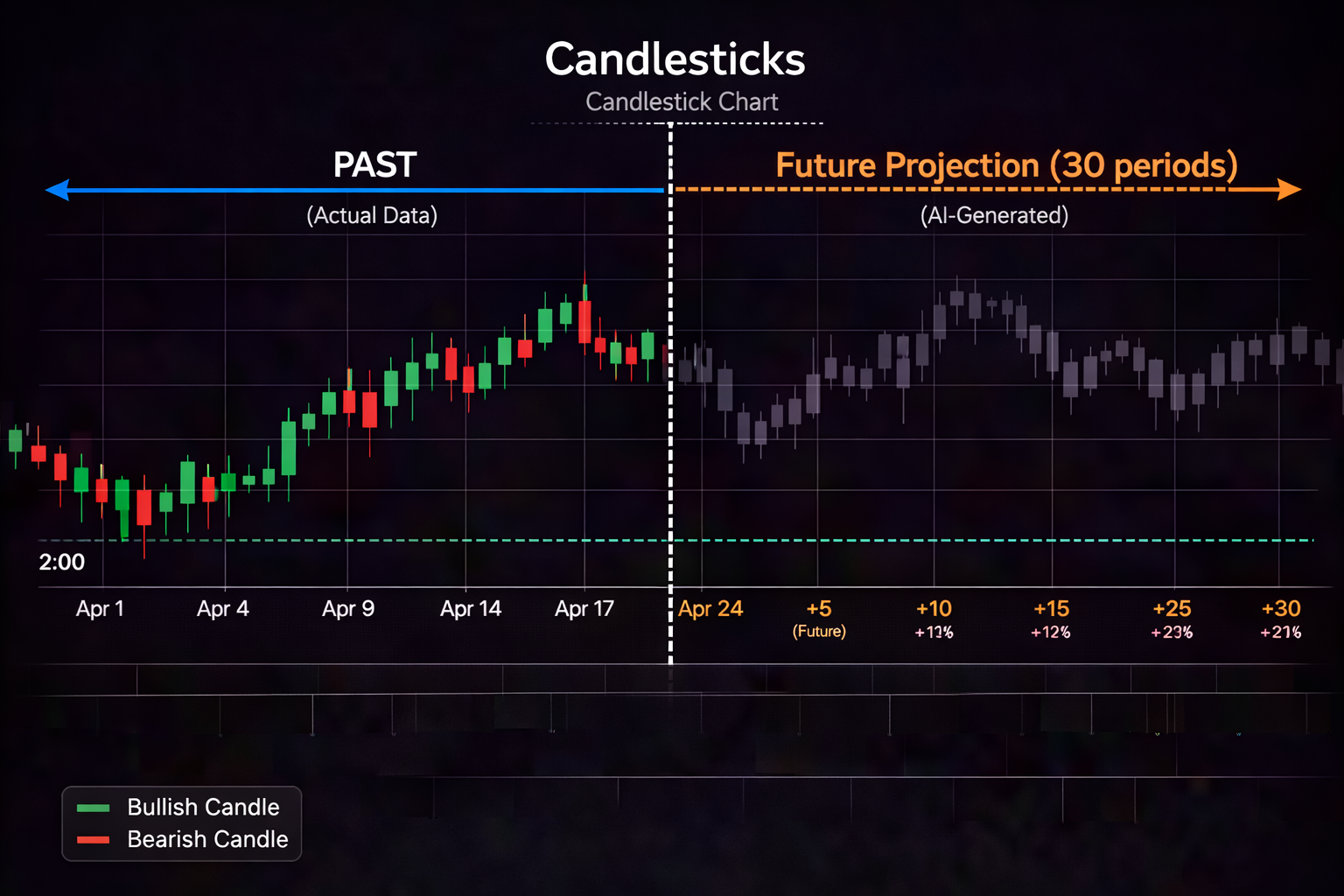

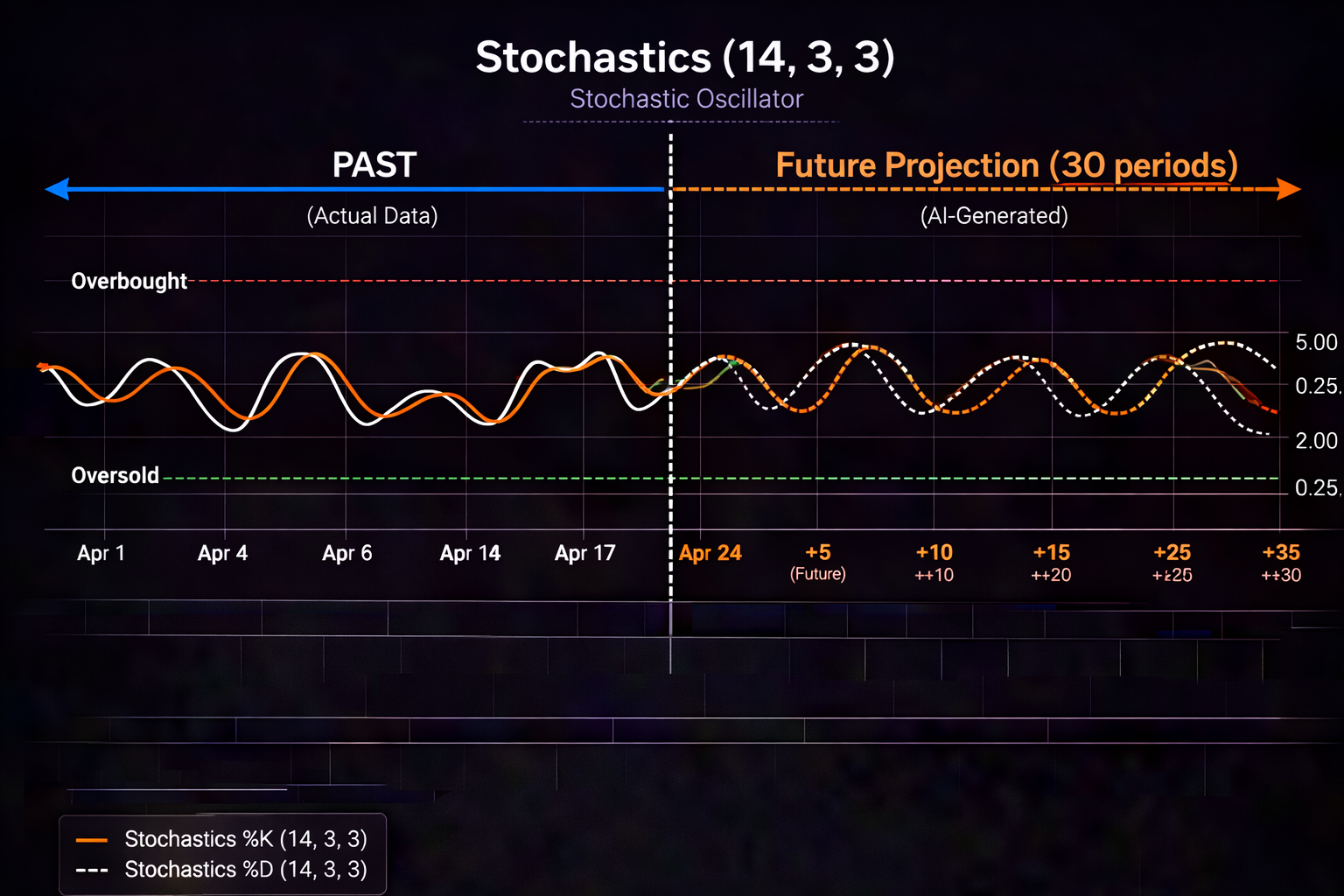


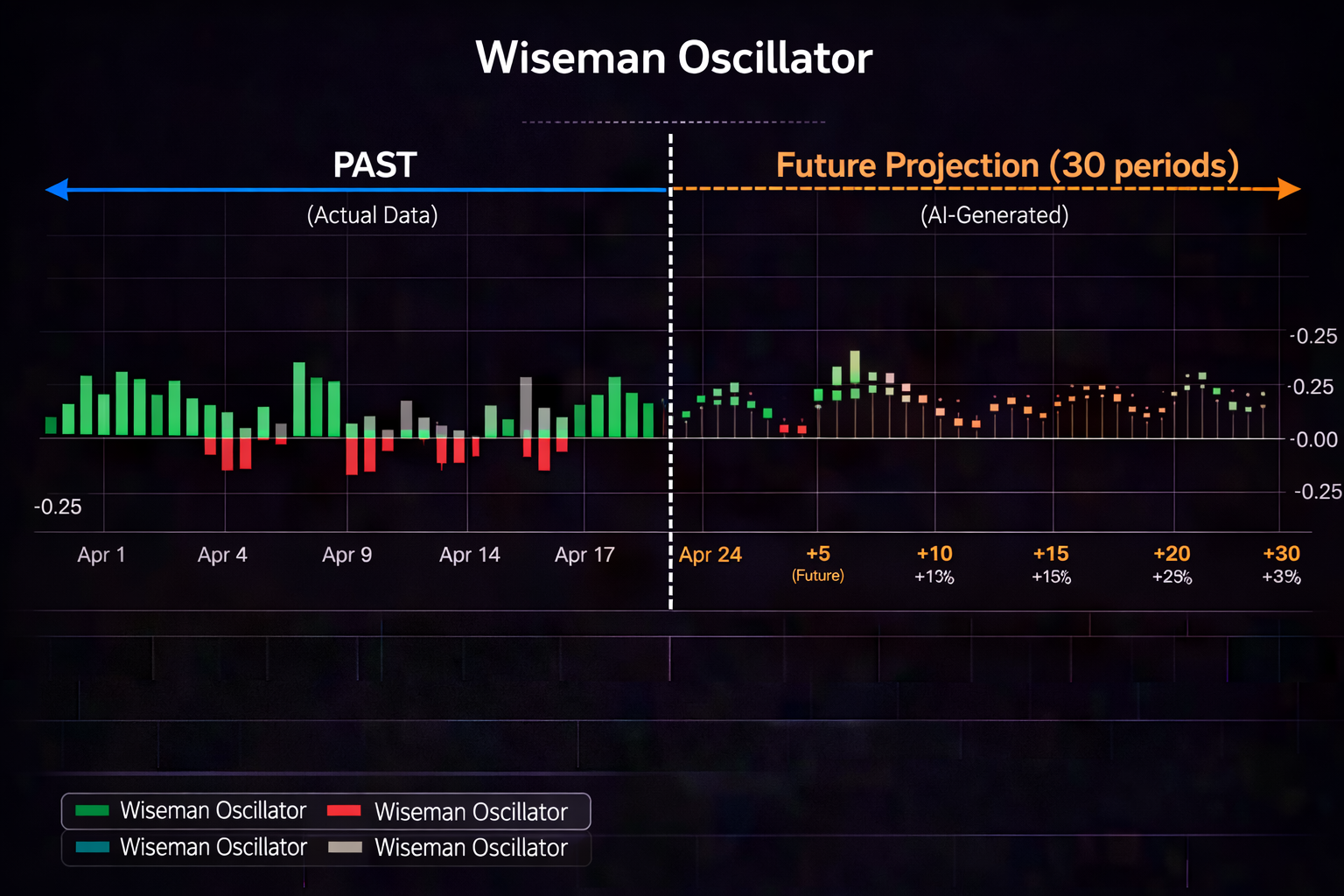
I used to think trading on a tablet was a compromise. You're either serious with a desktop setup, or you're casually checking positions on your phone — right?
Then I spent a month trading exclusively on my iPad Pro. Not as a secondary device. As my only trading screen.
Result: I changed my mind. Completely.
The iPad — especially the Pro models — has become a legitimate professional trading device. The screen is large enough for real technical analysis. iPadOS has matured to support serious workflows. And with the right AI tools, you get predictive insights that keep you ahead of the market, not just reacting to what already happened.
This guide covers everything you need to build a professional iPad trading setup in 2026: which iPad model to choose, which apps actually work, how to use Split View and Stage Manager for multi app workflows, and why PredictIndicators.ai has become central to my iPad trading routine.
Let's build your iPad trading workstation.
Which iPad Model Should You Use for Trading?
Not all iPads are created equal for trading. Here's the breakdown:
iPad Pro 12.9" (M2/M3) — Best for Serious Traders
This is the one I use daily. The 12.9 inch Liquid Retina XDR display gives you enough screen real estate to see meaningful chart detail. The M2/M3 chip handles multiple apps without lag. And ProMotion (120Hz refresh rate) makes chart scrolling buttery smooth.
Ideal for: Full time traders, day traders who need fast updates, anyone who wants a desktop replacement experience.
Price: $1,099+ (worth every penny if trading is your income)
iPad Pro 11" (M2/M3) — Portable Powerhouse
Smaller than the 12.9", but still plenty usable for trading. The trade off: you'll rely more on Split View to maximize screen space. But it's lighter, more portable, and fits in smaller bags.
Ideal for: Traders who travel frequently, coffee shop traders, those who want Pro performance in a smaller package.
Price: $799+
iPad Air (5th Gen) — Budget Friendly Option
The Air gives you 90% of the Pro experience at a lower price. You lose ProMotion and the XDR display, but the M1 chip still handles trading apps effortlessly. The 10.9 inch screen is workable — just not as spacious as the Pro.
Ideal for: Part time traders, swing traders who don't need constant screen time, budget conscious builders.
Price: $559+
iPad Mini (6th Gen) — Monitoring Only
I'll be honest: the 8.3 inch screen is too small for serious chart analysis. But it's perfect for monitoring alerts, checking positions, and quick glances throughout the day. Think of it as a large iPhone for trading — not a primary analysis device.
Ideal for: Secondary device for alert monitoring, traders who already have a desktop setup and want portable backup.
Price: $499+
Essential Apps for iPad Trading in 2026
Your iPad is only as good as the apps you run on it. Here's my core trading stack:
1. PredictIndicators.ai (iPad Optimized) — AI Predictions
This is the foundation of my iPad setup. PredictIndicators.ai isn't just a shrunk down phone app — it's optimized for the iPad's larger screen with a layout that takes advantage of the extra space.
iPad specific features:
- Larger chart views — See more bars, more indicators, clearer prediction overlays
- Split View ready — Run PredictIndicators.ai alongside your broker app, news feed, or economic calendar
- Apple Pencil support — Mark up charts directly: draw support/resistance, circle setups, jot notes
- Stage Manager integration — Organize multiple app windows for complex workflows
- Widget support — At a glance signal monitoring from your home screen
Why it matters: Most trading apps treat iPad as a big iPhone. PredictIndicators.ai treats it as what it is: a serious analysis device that happens to be portable.
Try PredictIndicators.ai on iPad
See 30 bar predictions on your iPad with native optimization, Split View support, and Apple Pencil annotations.
2. Your Broker's iPad App — Execution
You need a way to execute trades. Most major brokers have iPad apps now:
- thinkorswim (Schwab) — Best overall for iPad, full featured
- Fidelity Investments — Clean interface, reliable
- Interactive Brokers — Professional tools, steep learning curve
- E*TRADE — Solid mid tier option
- Webull — Good for beginners, limited advanced features
Pro tip: Use Split View to run PredictIndicators.ai on the left and your broker app on the right. When a signal fires, you're one tap away from execution.
3. Popular Charting Platforms (iPad) — Supplemental Technical Analysis
Leading charting platforms have excellent iPad apps for additional chart analysis, social ideas, and screening. They're not a replacement for predictive AI, but they're a great complement.
Best use: Run your preferred charting platform in Split View for community ideas while PredictIndicators.ai runs your predicted signals in the background.
4. Benzinga Pro or Twitter/X — News Flow
Markets move on news. Having a real time news feed open while you trade keeps you aware of catalysts that might invalidate technical setups.
iPad advantage: Run news in a floating window (Picture in Picture) so it's visible but not blocking your charts.
5. Economic Calendar — Macro Awareness
Apps like Forex Factory or Investing.com's economic calendar help you avoid getting caught in volatility spikes from Fed announcements, jobs reports, etc.
iPadOS Features That Make Trading Better
iPadOS isn't just iOS on a bigger screen. It has features specifically designed for productivity — and they're perfect for trading.
Split View — Your New Best Friend
Split View lets you run two apps side by side. For trading, this is game changing:
- PredictIndicators.ai (left) + Broker app (right) = instant signal to execution workflow
- PredictIndicators.ai (left) + News feed (right) = context aware trading
- Charting platform (left) + Economic calendar (right) = technical + fundamental awareness
How to use: Open your first app, swipe up from the bottom to reveal the dock, then drag a second app from the dock to the left or right edge of the screen. Adjust the divider to set your preferred split ratio (I use 60/40 for charts + broker).
Stage Manager — For Complex Workflows
Stage Manager (iPadOS 16+) lets you have multiple app windows open and switch between them quickly. Think of it as virtual desktops for your iPad.
My Stage Manager setup:
- Window 1: PredictIndicators.ai + thinkorswim (Split View)
- Window 2: Charting platform + Benzinga Pro (Split View)
- Window 3: Safari with watchlist spreadsheet
Swipe from the right edge to cycle through windows. It's like having three monitor setups — on a single tablet.
Apple Pencil — Chart Annotations That Feel Natural
This is the feature that surprised me most. Drawing on charts with the Apple Pencil feels more natural than trying to draw with a mouse. I use it for:
- Drawing support and resistance levels
- Marking entry and exit points
- Circling setups I want to monitor
- Jotting quick notes directly on charts ("watch for breakout above $185")
PredictIndicators.ai supports Apple Pencil input for chart markups. The precision is excellent — and your annotations save with the chart, so you can review your thinking later.
Widgets — At a Glance Signal Monitoring
iPad home screen widgets let you see critical info without opening apps. I have:
- PredictIndicators.ai widget showing active alerts
- Market indices widget (SPY, QQQ, DIA)
- Economic calendar widget (today's events)
Before I even open my trading apps, I see what's happening. It's like having a trading dashboard on your home screen.
Focus Modes — Trading Without Distractions
iPadOS Focus modes let you silence non essential notifications during trading hours. I have a "Trading" Focus that:
- Allows notifications from PredictIndicators.ai (critical alerts)
- Allows notifications from my broker (order confirmations)
- Silences social media, email, and games
- Auto enables from 9:00 AM to 4:30 PM ET on weekdays
Result: I'm notified about market moving events, but not distracted by Instagram likes.
Portrait vs. Landscape: Which Orientation for Trading?
Most people default to landscape. But portrait has advantages depending on your style:
| Orientation | Best For | Trade offs |
|---|---|---|
| Landscape | Wide chart views, Split View side by side, multi monitor setups | Takes up more horizontal desk space |
| Portrait | Long term charts (more vertical bars), reading news feeds, single app focus | Split View is less natural (top/bottom instead of left/right) |
My take: Landscape for active trading sessions. Portrait for morning analysis or evening review. The iPad's auto rotate makes switching instant.
Step by Step: Building Your iPad Trading Workspace
Here's how to set up your iPad for professional trading — from unboxing to first trade.
Get a stand that positions your iPad at eye level. I use the Lamicall adjustable stand ($25) — it's sturdy, adjustable, and doesn't take up much desk space. If you have the Magic Keyboard, use it — but still get a stand for when you want to use Apple Pencil.
Download PredictIndicators.ai from the App Store, your broker's app, a charting platform, and a news app. Log into all of them. Enable biometric login (Face ID or Touch ID) for instant access.
Set up your watchlist. Configure alerts for the signals you care about (MACD crossovers, RSI reversals, etc.). Test that notifications work — you should get a push alert when a predicted signal forms.
Open PredictIndicators.ai. Swipe up from the bottom to reveal the dock. Drag your broker app to the right edge. Adjust the divider so PredictIndicators.ai gets about 60% of the screen. This is your primary trading workspace.
Go to your home screen. Long press until apps jiggle. Tap the + button. Add PredictIndicators.ai widget (medium size), a market indices widget, and an economic calendar widget. Arrange them at the top of your home screen for quick glances.
Settings → Focus → Add Focus → Custom. Name it "Trading." Set allowed notifications to PredictIndicators.ai and your broker app. Set a schedule: weekdays, 9:00 AM to 4:30 PM ET. Now your iPad automatically silences distractions during market hours.
Before trading real money, do a dry run. Watch for signals in PredictIndicators.ai. When one fires, practice executing in your broker app. Time yourself. The goal: under 30 seconds from alert to order entry.
Real Example: One Week Trading Only on iPad
To test whether iPad trading is viable, I spent one week using only my iPad Pro for all trading activity. No desktop. No phone except for non trading stuff. Here's what happened:
Monday: Set up my watchlist in PredictIndicators.ai overnight. Morning alert: NVDA showing a predicted MACD bullish crossover within 5 bars. I opened thinkorswim in Split View, waited for the crossover to confirm, and entered a long position. Exit was flagged by PredictIndicators.ai Wednesday afternoon. +4.2% gain.
Tuesday: AAPL RSI reversal signal. The iPad's larger screen let me see the prediction overlay clearly — RSI was predicted to reverse from oversold within 3 bars. I entered, set a stop, and let it play out. Used Apple Pencil to mark my entry and target directly on the chart. +2.8% gain.
Wednesday: No setups met my criteria. This is important: the iPad didn't make me overtrade. If anything, the focused screen (vs. my 4 monitor desktop) made me more selective. I reviewed my watchlist, adjusted alerts, and did nothing. That's a win.
Thursday: TSLA breakout setup. PredictIndicators.ai flagged a predicted ATR expansion suggesting a big move. I used Split View to monitor TSLA alongside the broader market (QQQ). When QQQ showed weakness, I skipped the TSLA entry — context saved me from a bad trade. No position.
Friday: SPY mean reversion setup. RSI predicted to reverse from overbought. I entered a small position (it was Friday, heading into weekend risk). Held overnight, exited Monday morning. +1.5% gain.
Week Result: 3 trades, 3 winners, +8.5% total. Could I have done this on desktop? Yes. But the iPad didn't hold me back — and the portability meant I could monitor positions from my couch, my kitchen, even my backyard.
The iPad isn't a compromise. It's a different way to trade — one that prioritizes flexibility without sacrificing analytical capability.
Build Your iPad Trading Setup
PredictIndicators.ai is optimized for iPad with native Apple Pencil support, Split View workflows, and Stage Manager integration.
→ Start your free trial on iPad — download from the App Store
Limitations: When iPad Isn't Enough
I'm bullish on iPad trading. But I'm also honest. Here are the scenarios where you'll still want a desktop:
- Complex multi chart analysis — If your strategy requires watching 8+ charts simultaneously, iPad's Split View maxes out at 2-3 apps. Desktop wins.
- Hotkey based execution — iPad doesn't support keyboard hotkeys for order entry. If you rely on F9 to buy and F10 to sell, you'll need desktop.
- Advanced order types — Some broker apps have limited order types on iPad. Complex conditional orders may require desktop.
- Backtesting and strategy development — Building and testing strategies is still better on desktop with full screen charting and data analysis tools.
My approach: iPad for active trading and monitoring. Desktop for deep analysis, backtesting, and strategy development. They complement each other — and PredictIndicators.ai syncs between both, so your watchlists and alerts are always current.
iPad vs. Android Tablets for Trading
If you're considering an Android tablet instead, here's the honest comparison:
| Feature | iPad | Android Tablet (Galaxy Tab, etc.) |
|---|---|---|
| App Quality | Higher (developers prioritize iPad) | Variable (many apps are just scaled phone apps) |
| Split View | Polished, reliable | Available, but less refined |
| Stylus | Apple Pencil (excellent latency, feels natural) | S Pen (Samsung) or third party (varies) |
| Performance | M2/M3 chip (desktop class) | Snapdragon (good, but not quite M series level) |
| Price | Higher ($559-$1,099+) | Lower ($400-$800 for comparable specs) |
| PredictIndicators.ai Support | Native iOS app, fully optimized | Native Android app, fully optimized |
Bottom line: iPad has better app support and a more polished experience. Android tablets offer better value. PredictIndicators.ai works great on both — choose based on your ecosystem preference and budget.
The Bottom Line: iPad Trading Is Legitimate
Five years ago, I would have laughed at the idea of trading on a tablet. Today, it's a core part of my workflow.
The iPad gives you enough screen space for real analysis. iPadOS provides the productivity features (Split View, Stage Manager, Apple Pencil) that make trading efficient. And with AI tools like PredictIndicators.ai, you get forward looking signals that keep you ahead of the market — not just reacting to lagging indicators.
Is it a desktop replacement? For some traders, yes. For others, it's the perfect complement to a desktop setup — portable enough for travel, powerful enough for serious analysis.
Either way, the iPad has earned its place in the modern trader's toolkit. And if you're not using one yet, 2026 is the year to try.
Ready to Trade on iPad?
PredictIndicators.ai is built for iPad with native optimization, Apple Pencil support, and seamless sync with your other devices.
→ Start your free trial — works on iPad, iPhone, Android, Mac, Windows, and web