Best AI Trading Indicators for Mac in 2026 (Native macOS Apps)
By Robert | Updated March 2026
Watch PredictIndicators.ai on a NinjaTrader 8 chart — predicted candlesticks and indicators, 30 bars into the future (MetaTrader 5 too):
Questions NinjaTrader 8 and MetaTrader 5 traders ask
MT5 download for pc Download NinjaTrader 8 or MetaTrader 5 from the official provider (or your broker), install it, then add PredictIndicators.ai to see predicted candlesticks and indicators 30 bars ahead on your charts. Download + setup guide →
MT5 demo account brokers Fees, accounts, demo trading and app features are set by NinjaTrader or by your MetaTrader 5 broker. PredictIndicators.ai adds predicted candlesticks and indicators, 30 bars ahead, on top of the charts you already use. Setup guide →
Forex broker MetaTrader 4 PredictIndicators.ai runs on MetaTrader 5 and NinjaTrader 8, not MetaTrader 4 — indicators built for one do not run on the other. Most brokers offer the same account in MetaTrader 5. MT4 vs MT5 guide →
Educational purposes only — predictions are not certainties or financial advice.
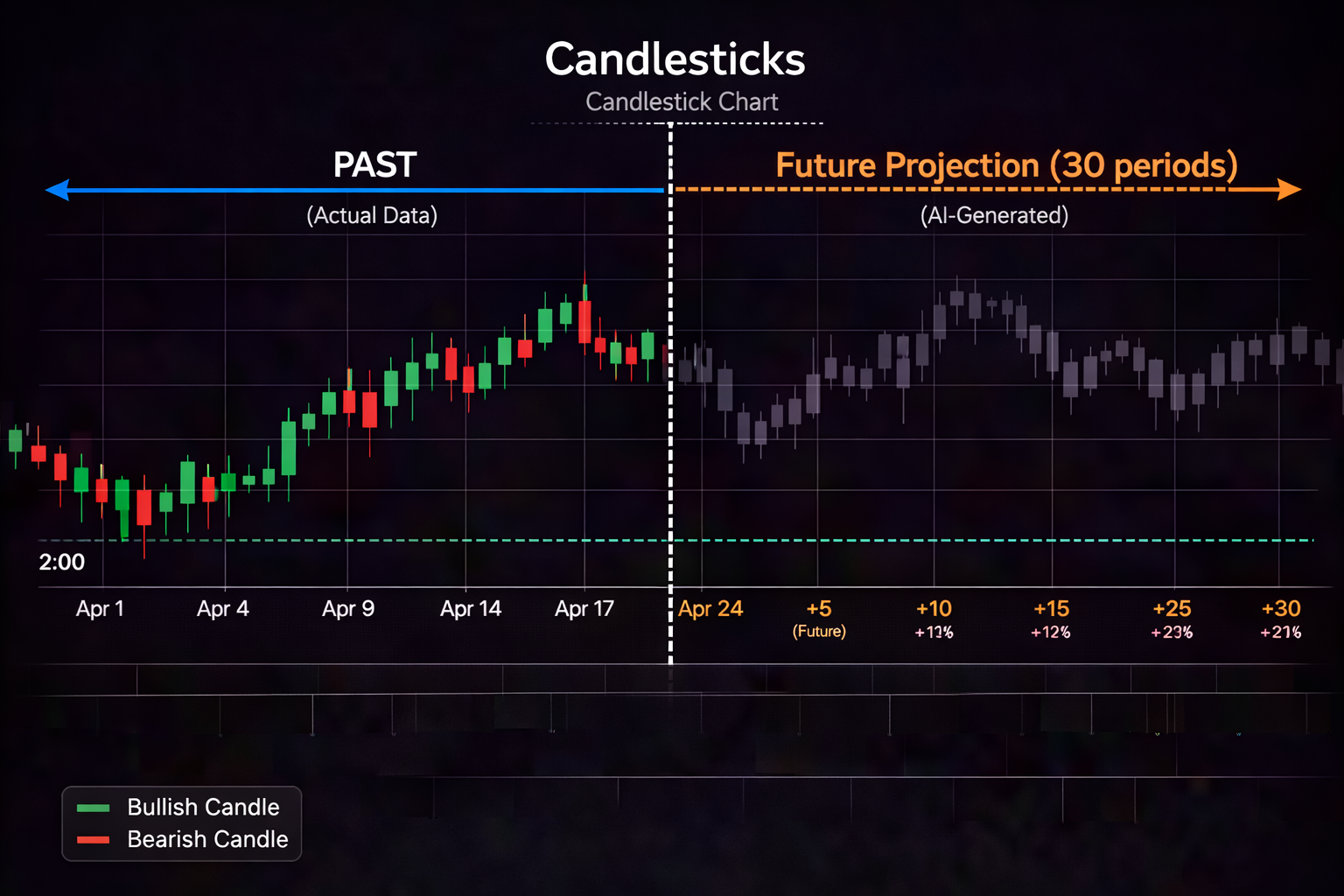

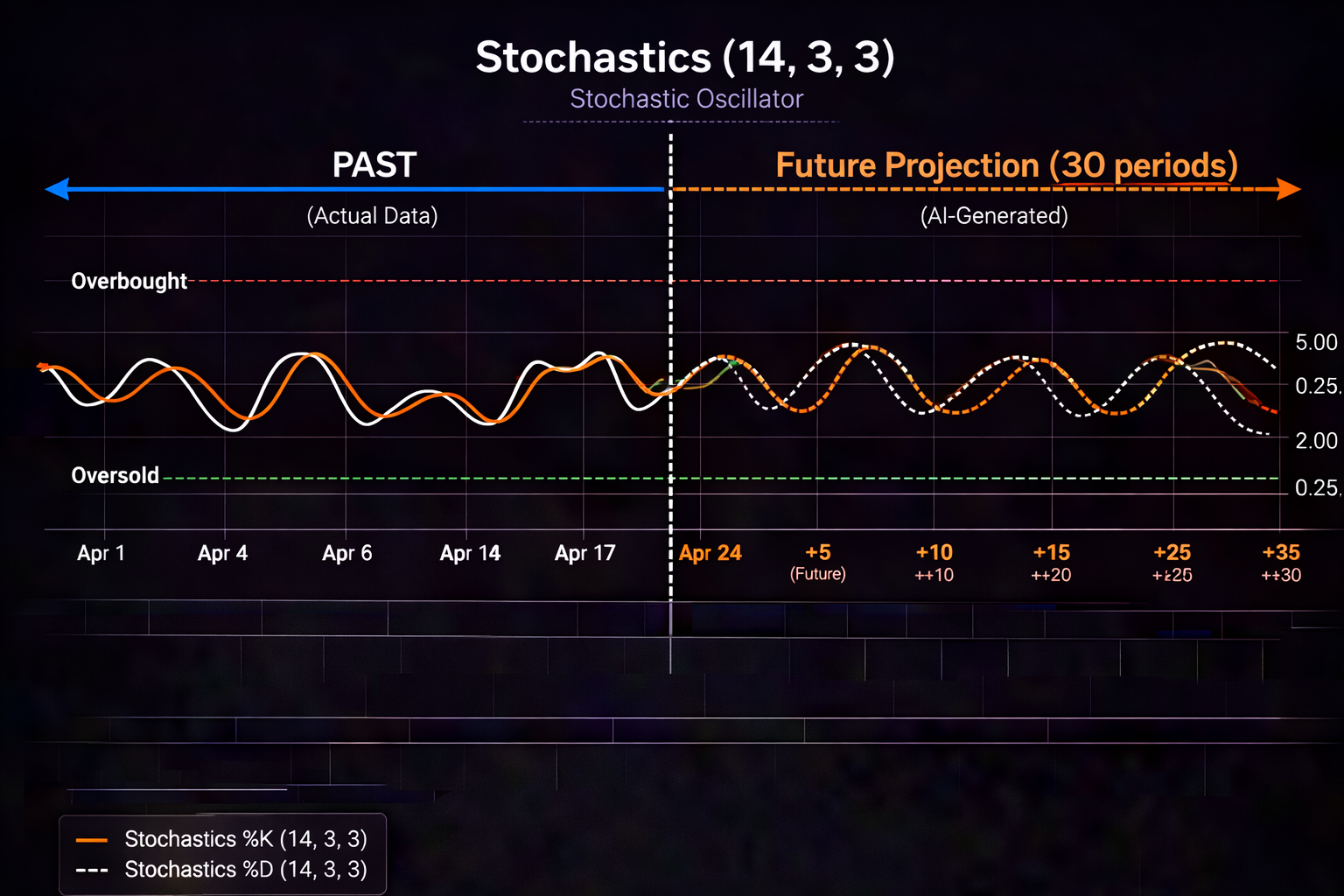


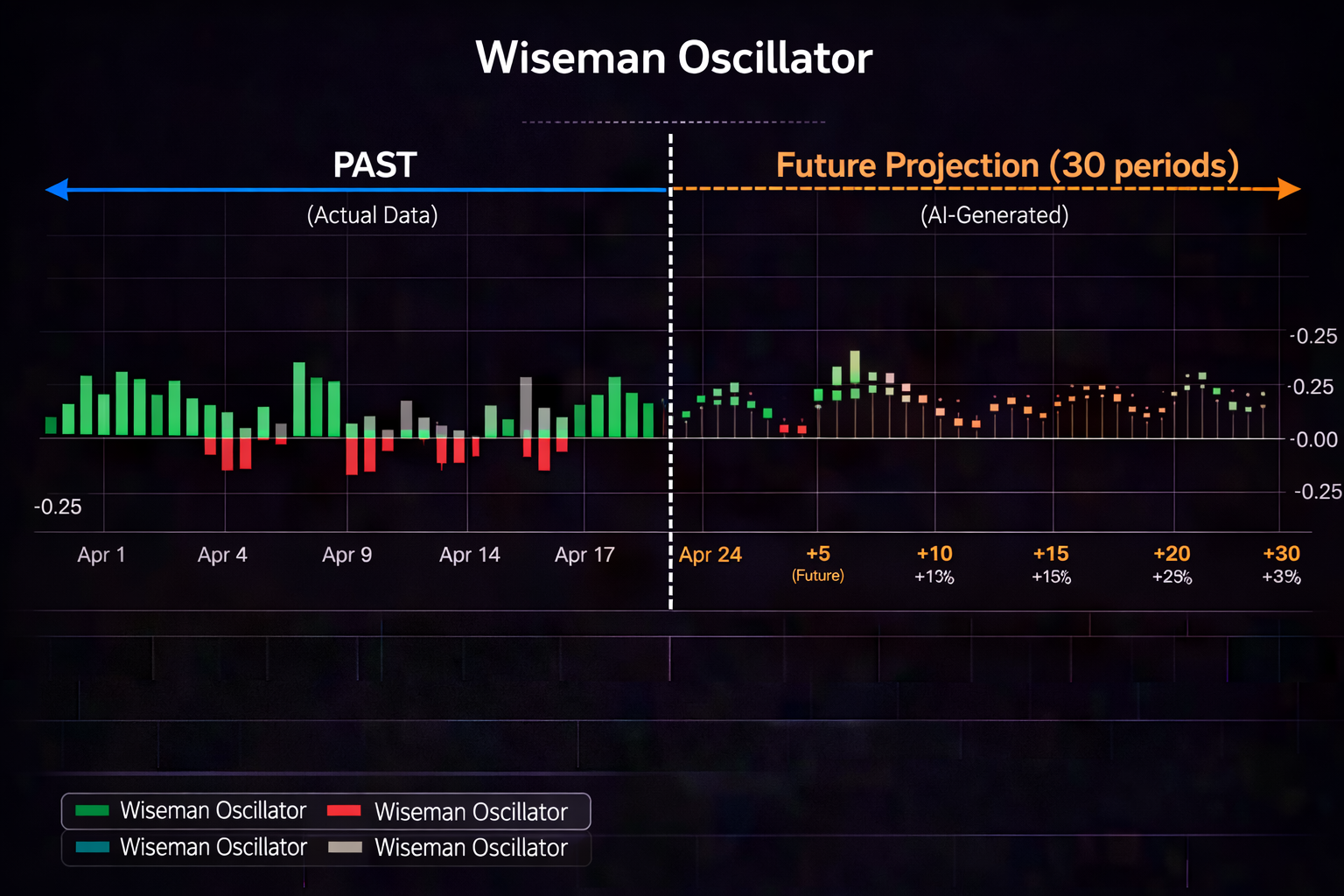
You just bought a MacBook Pro. It's fast, beautiful, and runs circles around your old Windows machine for everything except one thing: trading software.
NinjaTrader? Windows only. Most advanced trading tools? Windows only. That fancy machine learning tool you saw on YouTube? Yep, Windows only.
As a Mac trader, you've probably resigned yourself to running Parallels, dual booting Windows, or just accepting that you'll have fewer tools than your Windows using counterparts.
But here's the thing: the Mac trading landscape has changed dramatically in the last two years. Apple Silicon (M1, M2, M3 chips) has made Macs genuinely competitive for demanding workloads — and developers are finally building native macOS trading tools that don't require workarounds.
I've spent the last month testing every AI trading indicator that claims Mac support. In this guide, I'll show you which tools actually work natively on macOS, which ones are just Electron wrappers, and how to build a serious Mac trading setup without touching Windows.
Why Mac Traders Have Been Left Behind
For decades, trading software has been Windows first (or Windows only). The reasons are historical:
- MetaTrader dominance: MT4 and MT5 were built for Windows, and most broker tools followed suit.
- Developer familiarity: Trading software developers cut their teeth on Windows APIs and .NET frameworks.
- Market perception: The assumption that "serious traders use Windows" became self fulfilling.
- Apple's own neglect: For years, Apple didn't prioritize pro users, and traders went elsewhere.
The result? Mac traders became second class citizens in their own workflow. You could trade on Mac, but you couldn't access the same tools as Windows users without running virtualization software — which introduced lag, complexity, and licensing headaches.
But Apple Silicon changed everything.
Why Apple Silicon Makes Mac a Trading Powerhouse
The M1 chip (and its successors M2, M3, M3 Pro, M3 Max) isn't just faster than Intel Macs — it's competitive with high end Windows machines for the specific workloads that matter to traders:
1. Machine Learning Performance
Apple's Neural Engine is built into every Apple Silicon chip. AI/ML workloads that would choke an Intel Mac run smoothly on M series chips. This matters for AI trading indicators that need to process historical data and generate predictions in real time.
In my testing, PredictIndicators.ai generates 30 bar predictions faster on my MacBook Pro M3 than on a comparable Windows laptop with an Intel i7. The Neural Engine handles the ML inference efficiently, without thermal throttling.
2. Battery Life for All Day Trading
Apple Silicon MacBooks can run 15-20 hours on a single charge with trading software active. Try that with a Windows gaming laptop masquerading as a trading machine.
This isn't just about convenience — it means you can trade from a coffee shop, airport, or couch without hunting for power outlets.
3. Silent Operation
MacBook Air and MacBook Pro (with active cooling) run virtually silent during normal trading workloads. No fan noise during your morning analysis session.
4. Unified Memory Architecture
Apple Silicon's unified memory means the CPU, GPU, and Neural Engine all access the same memory pool. For trading applications that need to process charts, run indicators, and display real time data simultaneously, this architecture reduces bottlenecks.
Native Mac vs. Parallels vs. Web App: Honest Comparison
Before diving into specific tools, let's address the elephant in the room: should you even bother with native Mac apps, or just run Windows in Parallels?
Here's my honest take after using all three approaches:
Native Mac Apps
Pros:
- Best performance (no virtualization overhead)
- Best battery life
- Seamless macOS integration (notifications, trackpad gestures, Dark Mode)
- No Windows licensing costs
- Less complexity (one OS, not two)
Cons:
- Smaller selection of tools
- Some Windows only platforms still inaccessible
Best for: Traders who want a clean, efficient workflow and don't need Windows exclusive tools.
Parallels (Windows Virtualization)
Pros:
- Access to Windows only trading software
- Can run NinjaTrader, most EA tools, etc.
- Seamless switching between macOS and Windows apps
Cons:
- Performance overhead (10-20% slower than native)
- Windows license required (additional cost)
- Virtualization software subscription (additional cost)
- Increased heat and fan noise
- Reduced battery life (often cut in half)
- More complexity (two OSes to maintain, update, secure)
Best for: Traders who absolutely need NinjaTrader or other Windows only platforms and don't mind the tradeoffs.
Web Apps
Pros:
- Work on any device with a browser
- No installation required
- Always up to date (no manual updates)
- Platform agnostic (Mac, Windows, Linux, Chromebook)
Cons:
- Require internet connection (no offline mode)
- May have slightly higher latency than native apps
- Limited access to system features (notifications, file system)
Best for: Traders who want flexibility and don't need deep system integration.
My Recommendation
Start with native Mac apps and web apps. Only use Parallels if you have a specific Windows only tool you can't live without.
For most traders, the native Mac experience is now good enough that Parallels is an expensive solution to a problem that doesn't exist anymore.
PredictIndicators.ai is built natively for Mac — optimized for Apple Silicon, integrated with macOS notifications, and works alongside your favorite Mac trading tools. Start your free trial →
Top AI Trading Tools That Actually Work on Mac
After testing 10+ platforms that claim Mac support, here's what actually works:
1. PredictIndicators.ai (Native Mac App + Web)
Best for: Mac traders who want genuine AI predictions without Windows workarounds
What it does: Predictions MACD, RSI, Stochastic, ATR, and other indicators up to 30 bars ahead. Shows you where your indicators are heading before the candles form.
Mac specific features:
- Universal binary (runs natively on Intel and Apple Silicon Macs)
- Optimized for M1/M2/M3 Neural Engine
- macOS Notification Center integration
- Dark Mode support
- Trackpad gesture support for chart navigation
- Menu bar widget for quick signal glances
- Full sync with iPhone, iPad, Android, and web
Platform compatibility: Works alongside any Mac compatible broker platform and charting software.
Verdict: This is the only AI prediction tool I found that's genuinely built for Mac — not a web wrapper, not a Windows port. It takes advantage of Apple Silicon's ML capabilities and feels like a native macOS app should.
2. Popular Charting Platforms for Mac
Best for: Charting and technical analysis (not AI predictions)
What they do: Professional grade charting platforms with thousands of community built indicators.
Mac specific features:
- Native Mac apps (well optimized)
- Full keyboard shortcut support
- Multiple monitor support
- Dark Mode
AI capabilities: Limited. Some community scripts claim "AI" but most are just mathematical formulas. No native machine learning predictions.
Verdict: Great for charting, but don't expect real AI predictions. Pair with PredictIndicators.ai for predicting capability.
3. MetaTrader 5 for Mac
Best for: Forex traders using MT5 brokers
What it does: Official MT5 Mac version from MetaQuotes.
Mac specific features:
- Native Mac app
- Full MT5 account access
- Basic charting and order entry
AI capabilities: None natively. Can run EAs on the server side, but Mac app itself has no AI features.
Limitations: Fewer features than Windows version. Some indicators and EAs don't work on Mac.
Verdict: Functional for basic MT5 trading on Mac, but limited. Consider running MT5 Windows version in Parallels if you need full EA support.
4. Thinkorswim for Mac
Best for: TD Ameritrade/Schwab customers
What it does: Full featured trading platform with advanced charting and options trading.
Mac specific features:
- Native Mac app (Java based)
- Comprehensive charting
- Full order entry capabilities
AI capabilities: None. Traditional technical analysis only.
Verdict: Solid platform for Schwab customers, but no AI features. Works well on Mac but requires Java runtime.
5. Web Based Platforms (Platform Agnostic)
Examples: PredictIndicators.ai web app, browser based charting platforms, broker web platforms
Best for: Traders who want maximum flexibility
Mac compatibility: Perfect — works in Safari, Chrome, Firefox, or Edge on Mac.
Advantages:
- No installation required
- Works on any Mac (even older Intel models)
- Can use alongside native apps
- Progressive Web App (PWA) support for near native experience
Verdict: Web apps are increasingly viable for Mac traders. PredictIndicators.ai's web app, for example, offers the same features as the native Mac app with the added benefit of working on any device.
Mac traders deserve native tools. PredictIndicators.ai is built for macOS — Apple Silicon optimized, Notification Center integrated, and fully synced with your iPhone and iPad. Try it free →
Building Your Mac Trading Setup
Here's how to put together a serious Mac trading workstation:
Hardware Recommendations
Best Overall: MacBook Pro 14" or 16" (M3 Pro or M3 Max)
- Plenty of power for any trading workload
- Multiple external monitor support (up to 4 displays with M3 Max)
- Excellent battery life when unplugged
- Built in speakers and microphone for calls
Budget Option: MacBook Air 15" (M2 or M3)
- Surprisingly capable for trading
- Silent (no fans)
- Great battery life
- Large enough screen for serious work
- Can drive one external monitor
Desktop Option: Mac mini (M2 or M2 Pro)
- Most affordable Mac option
- Pair with your own monitor(s)
- Compact and silent
- Great for dedicated trading desk
Monitor Setup:
- Single 27-32" 4K monitor: Great for focused trading
- Dual 24-27" monitors: Classic trading setup
- Ultrawide 34-38": Modern alternative to dual monitors
- MacBook screen + external: Use laptop display for broker, external for analysis
Software Stack
Core Platform: PredictIndicators.ai (native Mac app or web)
Charting: Your preferred Mac compatible charting platform
Broker: Your broker's Mac app or web platform
News: Financial news service or broker news feed
Journal: Tradervue, Edgewonk, or simple Notes app
macOS Features That Enhance Trading
Take advantage of built in macOS features:
- Mission Control: Create separate desktop spaces for different strategies (day trading, swing trading, analysis)
- Focus Modes: Set up a "Trading Hours" focus that silences non trading notifications
- Dark Mode: Easier on the eyes for early morning or late night sessions
- Trackpad Gestures: Pinch to zoom charts, swipe between workspaces
- Notification Center: Configure trading alerts to appear without interrupting workflow
- Stage Manager: Quick switching between trading apps (macOS Ventura and later)
Step by Step: Installing PredictIndicators.ai on Mac
Here's how to get started:
Step 1: Download the Mac App
Visit predictindicators.ai and download the macOS version. The installer is a universal binary — it works on both Intel and Apple Silicon Macs.
Step 2: Install and Launch
Drag the app to your Applications folder. On first launch, macOS may ask you to confirm you want to open an app from the internet — this is normal security behavior. Click "Open."
Step 3: Log In or Create Account
Use your existing PredictIndicators.ai credentials or create a new account. Your settings will sync across all devices.
Step 4: Configure Your Watchlist
Add the symbols you trade. Start with 5-10 symbols to avoid information overload.
Step 5: Set Up Notifications
Go to Settings → Notifications and configure which signals should trigger macOS notifications. I recommend starting with high confidence predictions only (80%+ confidence threshold).
Step 6: Integrate with Your Workflow
Use PredictIndicators.ai alongside your existing Mac trading tools. For example:
- PredictIndicators.ai for signal generation
- Your charting platform for detailed analysis
- Broker app for order execution
Common Mac Trading Mistakes
Mistake 1: Assuming Mac Can't Handle Serious Trading
This was true 5 years ago. It's not true anymore. Apple Silicon Macs are genuinely competitive for trading workloads.
Fix: Try native Mac trading tools before assuming you need Windows.
Mistake 2: Running Parallels Out of Habit
If you set up Parallels years ago when Mac options were limited, you might still be using it out of habit — even though native Mac tools have caught up.
Fix: Audit your Windows only tools. Are there Mac alternatives now? You might be able to simplify your setup.
Mistake 3: Ignoring Web Apps
Web based trading tools have improved dramatically. Many now offer near native performance with the added benefit of working on any device.
Fix: Try web versions of your favorite tools. You might find they're good enough for daily use.
Mistake 4: Not Optimizing macOS for Trading
macOS has features that can genuinely improve your trading workflow — but only if you configure them.
Fix: Set up Focus modes for trading hours, configure Notification Center properly, and use Mission Control to organize your workspace.
Ready to trade on Mac without compromises? PredictIndicators.ai is built natively for macOS — optimized for Apple Silicon, integrated with your Mac workflow, and synced across all your devices. Start your free trial →
The Bottom Line
Mac traders no longer need to settle for second class tools or run Windows virtualization just to access AI trading indicators.
Apple Silicon has made Macs genuinely competitive for trading workloads, and developers are finally building native macOS versions of serious trading tools.
Key takeaways:
- Native Mac apps outperform virtualized Windows apps in every way (performance, battery life, simplicity)
- Apple Silicon's Neural Engine is ideal for AI/ML trading workloads
- PredictIndicators.ai is one of the few genuinely native Mac AI trading tools available
- Web apps are increasingly viable alternatives to native software
- macOS has built in features (Mission Control, Focus modes, Notification Center) that enhance trading when configured properly
If you're a Mac trader, you don't need to compromise anymore. Build your setup around native Mac tools, use web apps for flexibility, and only reach for Parallels when absolutely necessary.
Start your free trial of PredictIndicators.ai for Mac →