Android App MetaTrader EA - Trade Like a Pro on Mobile (2026 Guide)
By Robert | Founder, PredictIndicators.ai | Updated March 2026
Watch PredictIndicators.ai on a NinjaTrader 8 chart — predicted candlesticks and indicators, 30 bars into the future (MetaTrader 5 too):
Questions NinjaTrader 8 and MetaTrader 5 traders ask
Ninjatrading On NinjaTrader 8, PredictIndicators.ai draws predicted candlesticks and indicators 30 bars into the future, right on your charts. NinjaTrader 8 guide →
Exness MetaTrader 5 On MetaTrader 5, PredictIndicators.ai draws predicted candlesticks and indicators 30 bars into the future, right on your charts. MetaTrader 5 guide →
NinjaTrader fees Fees, accounts, demo trading and app features are set by NinjaTrader or by your MetaTrader 5 broker. PredictIndicators.ai adds predicted candlesticks and indicators, 30 bars ahead, on top of the charts you already use. Setup guide →
Educational purposes only — predictions are not certainties or financial advice.
You've heard about MetaTrader Expert Advisors (EAs) — automated trading systems that execute trades based on predefined rules. But here's what most guides won't tell you: running an EA on your Android phone or tablet isn't just possible, it's becoming the preferred setup for traders who want to monitor signals anywhere, anytime, without being chained to a desktop.
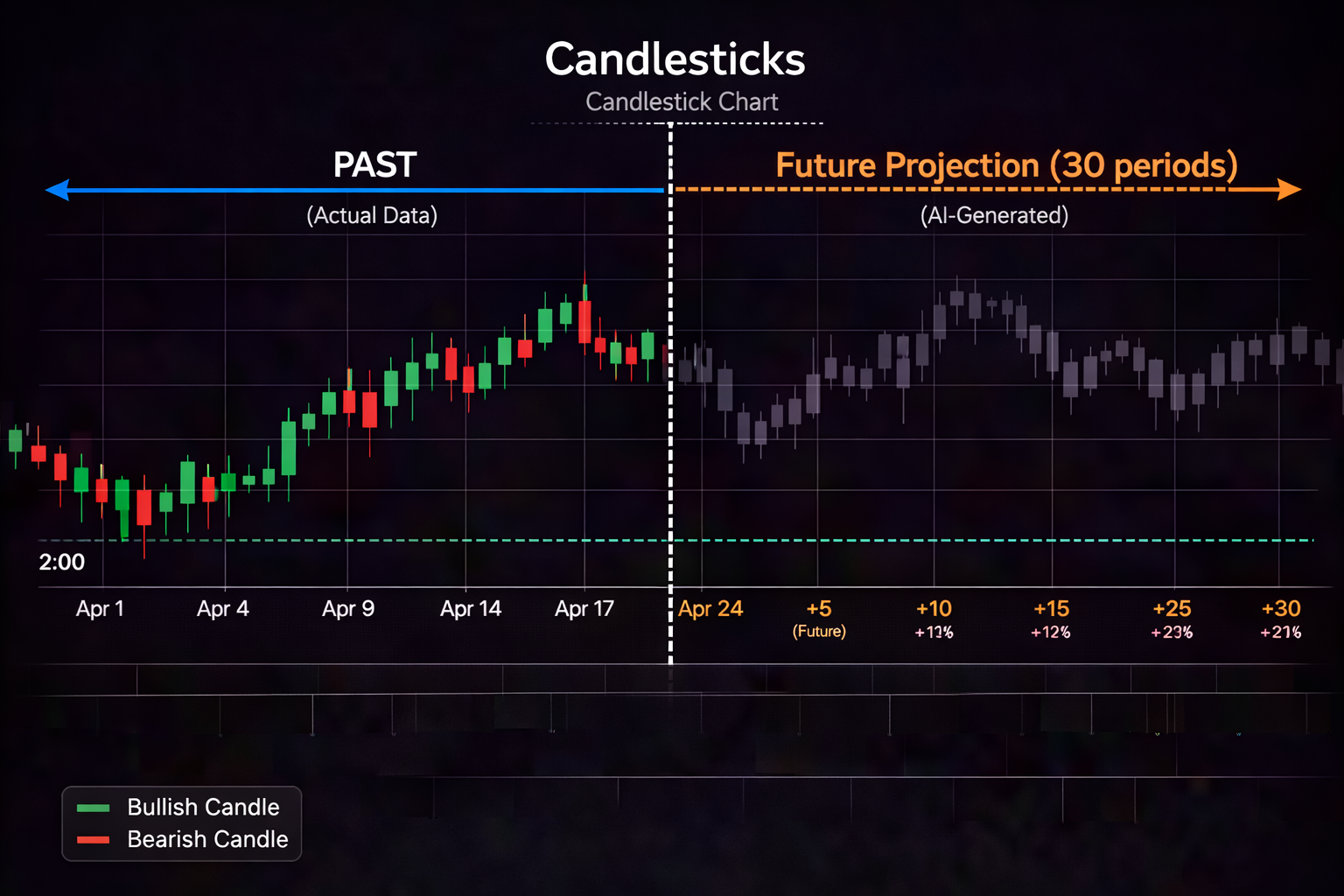

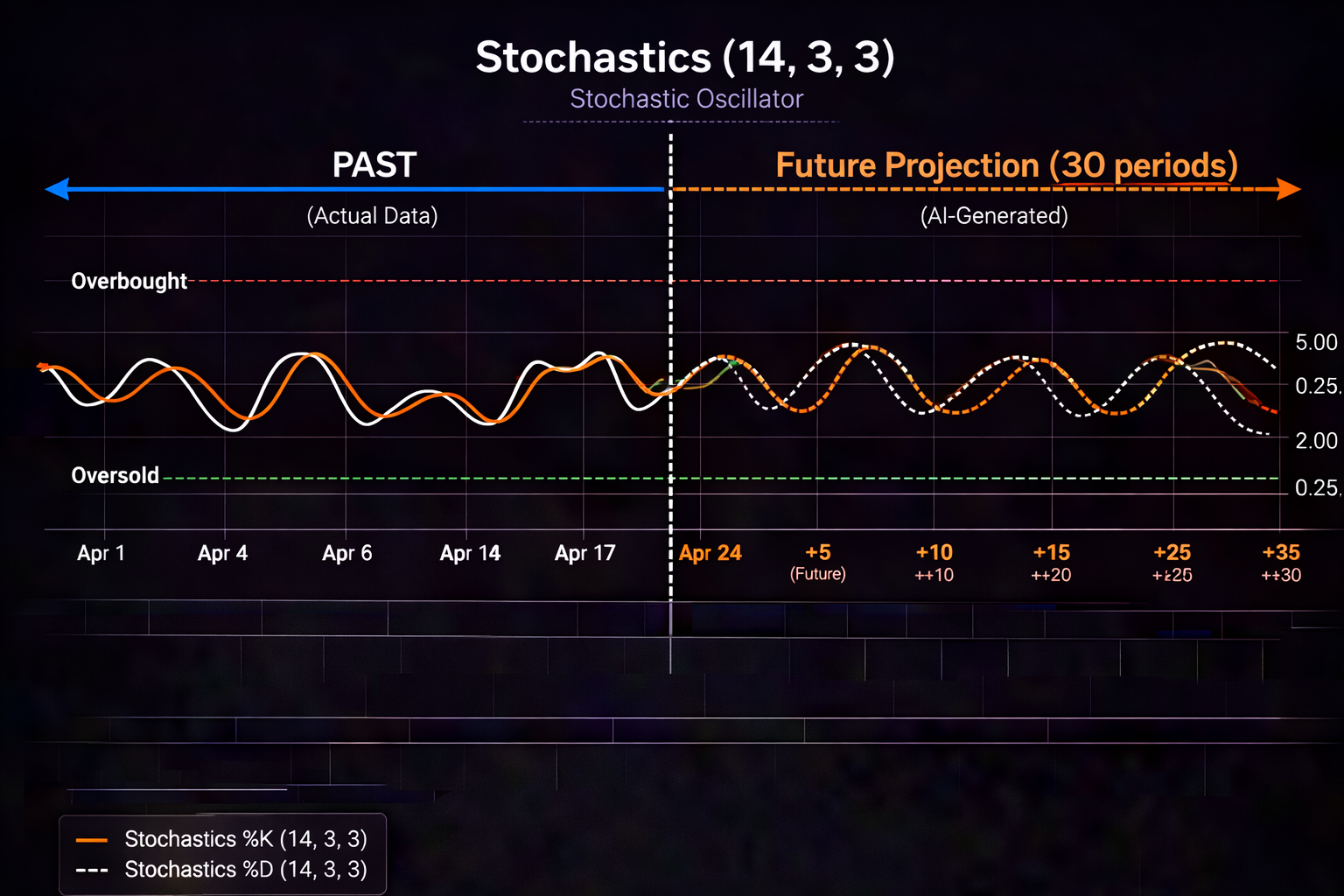


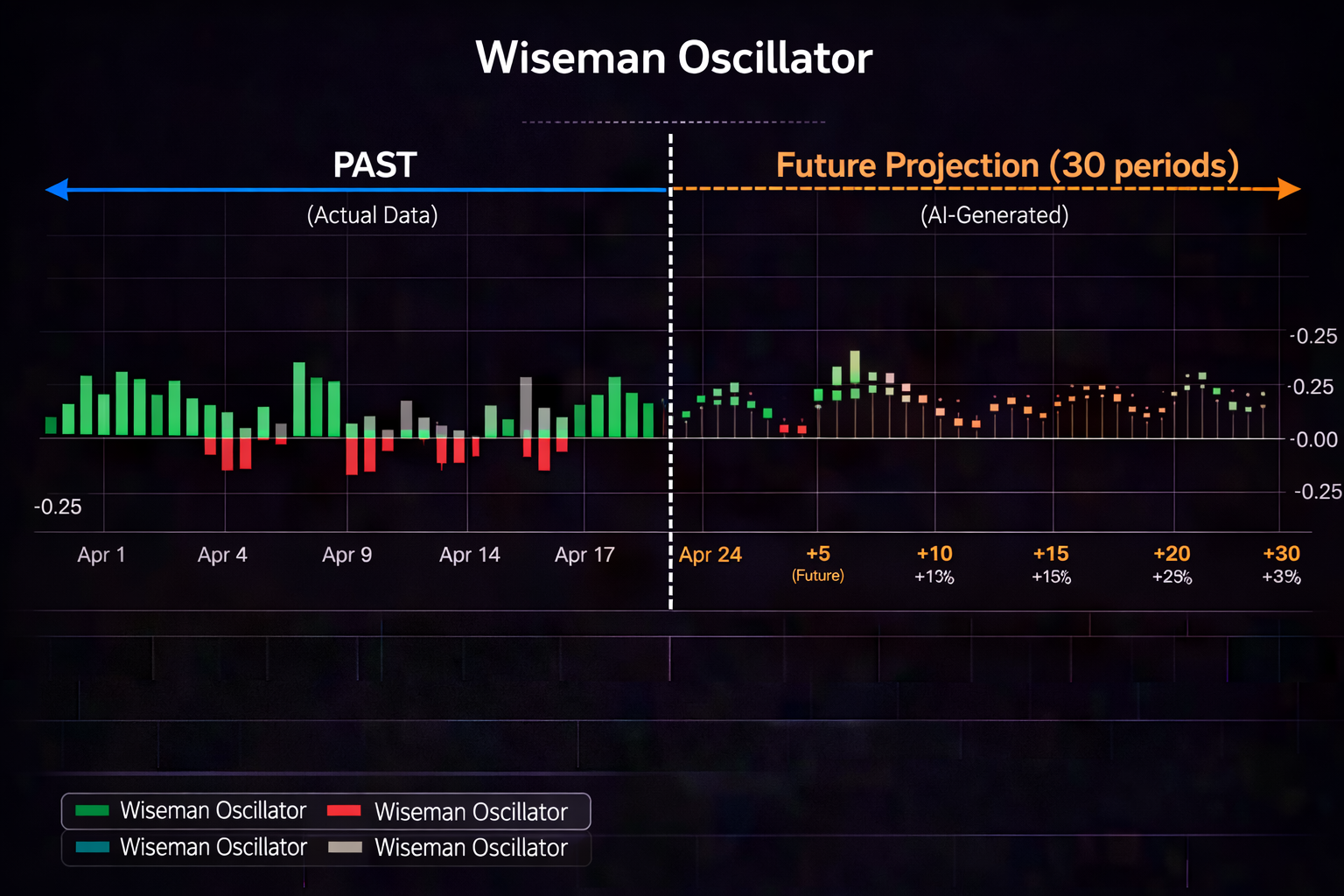
The question isn't "can I use MetaTrader EA on Android?" — it's "how do I use Expert Advisors with AI powered predictions on my Samsung Galaxy, Google Pixel, or Android tablet for a mobile optimized trading workflow?" This guide answers that question with step by step setup instructions, device specific tips, and honest insights about what works (and what doesn't) when trading EAs on Android.
Why Android for MetaTrader EA Trading?
For years, serious traders assumed Android was a second class platform for MetaTrader. The desktop version got all the features. Mobile was an afterthought. That's changed dramatically in 2026.
Modern Android devices — especially flagships like Samsung Galaxy S25 Ultra, Google Pixel 9 Pro, and high end Android tablets — offer processing power, screen quality, and connectivity that rivals desktop setups from just three years ago. Meanwhile, the MetaTrader 5 Android app has matured with better charting, more reliable push notifications, and improved EA signal integration.
Why Android traders choose mobile EA workflows:
- Portability: Monitor EA signals during commutes, travel, or away from your desk
- Push notifications: Android's notification system alerts you when EA conditions trigger — no constant chart watching
- Split screen multitasking: Run MT5 alongside news feeds, economic calendars, or prediction dashboards on tablets
- Widget support: Android home screen widgets show quick signal status without opening the app
- Always On Display: Samsung and Pixel phones show critical info on locked screen for quick glances
- Cost advantage: High end Android tablets cost less than equivalent iPad Pro setups
But there's a critical limitation: the native MT5 Android app doesn't run custom EAs directly. EAs execute on the desktop or VPS version of MT5. The Android app receives signals and notifications from those EAs — it's a monitoring and execution layer, not the EA host itself.
That's where the modern workflow comes in: run your EA (enhanced with PredictIndicators.ai predictions) on desktop or VPS, then monitor and manage trades from your Android device with full mobile optimization.
The Mobile First EA Workflow (2026 Standard)
Here's how serious traders structure their Android + MetaTrader EA setup:
- EA Host: MT5 desktop (Windows/Mac via Parallels) or cloud VPS runs the Expert Advisor 24/7
- AI Enhancement: PredictIndicators.ai feeds forward looking predictions into the EA logic (30 bar predictions for MACD, RSI, Stochastics, etc.)
- Signal Sync: When EA conditions trigger, signals sync to your Android device via MT5's cloud infrastructure
- Mobile Monitoring: MT5 Android app displays signals, sends push notifications, and allows one tap trade execution
- Tablet Advantage: Android tablets (Galaxy Tab S9, Pixel Tablet) enable split screen: MT5 charts + prediction dashboard side by side
This workflow gives you the reliability of desktop/VPS EA execution with the flexibility of Android mobile monitoring. You're not running the EA on your phone — you're controlling it from your phone, which is more stable and more powerful.
Understanding MetaTrader Expert Advisors (EAs)
Before diving into Android setup, let's clarify what an Expert Advisor actually is — because marketing has muddyed the term.
What an EA is: An Expert Advisor is a custom program written in MQL5 (MetaQuote Language 5) that automates trading decisions based on predefined rules. Examples: "Buy when MACD crosses bullish AND RSI < 30" or "Close position when ATR expands 50% from entry."
What an EA is NOT: An EA is not a "set it and forget it" money printer. It's not AI (unless explicitly programmed with ML models). It's not a replacement for risk management. It's a tool that executes rules faster and more consistently than manual trading — but the rules still come from you.
The AI gap: Traditional EAs react to lagging indicators. They wait for MACD to cross, then enter. They wait for RSI to hit 30, then buy. By the time the signal confirms, price has often already moved. That's the edge PredictIndicators.ai adds: it predicts where indicators are going 30 bars ahead, so your EA can position before the crowd reacts.
Traditional EA vs. AI Enhanced EA
| Feature | Traditional EA | AI Enhanced EA (with PI.ai) |
|---|---|---|
| Signal Timing | Reacts after confirmation | Positions before confirmation (30 bar prediction) |
| MACD Logic | "Enter when MACD crosses" | "Enter when predicted MACD will cross in 8 bars" |
| RSI Logic | "Buy when RSI < 30" | "Buy when predicted RSI will reach 28 in 12 bars" |
| Win Rate | Depends on lagging confirmation | Improved by forward looking edge |
| Android Integration | Signal notifications only | Prediction visualization + alerts on mobile |
The Android app becomes your command center — not just receiving "trade executed" notifications, but showing why the trade triggered (the predicted indicator values) and giving you confidence to hold or adjust positions based on forward looking data.
Device Specific Setup Guides
While the core workflow is consistent across Android devices, each platform has unique features that enhance the EA trading experience. Below are step by step setup instructions for Samsung Galaxy, Google Pixel, and Android tablets.
---Setup Guide: Samsung Galaxy S (S23 S25 Series)
Samsung Galaxy flagships are the most popular Android choice for MetaTrader traders. Here's why: excellent AMOLED displays (crisp chart rendering), S Pen support (for chart annotations on Ultra models), Samsung DeX (desktop like experience with keyboard/mouse), and robust notification controls.
Step by Step: Samsung Galaxy MetaTrader EA Setup
- Install MetaTrader 5 from Google Play
Search "MetaTrader 5" in Play Store. Install the official app by MetaQuotes Software Corp. (10M+ downloads, 4.3★ rating). Grant notification permissions when prompted. - Connect to Your Broker
Open MT5 → Settings → New Account → search your broker → enter credentials. If your broker isn't listed, add server manually. Test connection with a demo account first. - Enable EA Signal Notifications
In MT5 app: Settings → Notifications → Enable "Trade Alerts" and "Push Notifications." Enter your MT5 desktop account ID to sync signals from desktop EA to mobile. - Configure Samsung Specific Features
- Always On Display: Settings → Lock Screen → Always On Display → enable "Show notifications" for MT5
- Edge Panel: Settings → Display → Edge Panel → add MT5 for quick access from screen edge
- Bixby Routine: Create automation: "When MT5 notification arrives → set volume to vibrate + turn on screen" - Install PredictIndicators.ai
Download from Google Play or direct APK from predictindicators.ai. Log in with same account credentials across devices. - Link PI.ai to MT5 Desktop
On your desktop MT5 (Windows or Mac via Parallels): install PredictIndicators.ai plugin → configure prediction models (MACD, RSI, Stochastics, ATR) → enable signal sync to mobile. - Test Signal Flow
Create a test alert on desktop MT5 + PI.ai. Verify the push notification arrives on your Galaxy within 5 seconds. Adjust sensitivity if needed. - Optimize Chart Display
In MT5 Android app: Settings → Charts → enable "Candlestick Width: Auto" and "Smooth Zoom" for best Galaxy AMOLED rendering. - Add Home Screen Widget
Long press home screen → Widgets → find MT5 → drag "Watchlist" widget to home screen. Shows top symbols at a glance. - Enable S Pen Shortcuts (Ultra Models)
Settings → Advanced Features → S Pen → Air Actions → assign "Open MT5" to S Pen double click for instant chart access.
Samsung specific advantage: Galaxy phones support split screen multitasking. Open MT5 on top half, PredictIndicators.ai dashboard on bottom half. Monitor EA signals and prediction predictions simultaneously without app switching.
Setup Guide: Google Pixel (Pixel 8-9 Series)
Google Pixel phones offer the cleanest Android experience — no bloatware, fastest security updates, and best integration with Google services. For traders, Pixel's advantages include superior notification management, call screening (block spam during trading hours), and seamless Google Workspace integration.
Step by Step: Google Pixel MetaTrader EA Setup
- Install MetaTrader 5
Google Play → search "MetaTrader 5" → install. Pixel's Play Protect automatically scans for security — MT5 passes all checks. - Broker Login
Open MT5 → New Account → broker search → credentials. Pixel's autofill suggests saved broker credentials if you've logged in before — convenient but verify accuracy. - Notification Channels Setup
Pixel's notification system is best in class. Long press MT5 app icon → App Info → Notifications → create channels:
- "EA Trade Alerts" (Priority: High, Sound: On)
- "Prediction Predictions" (Priority: Medium, Sound: Silent)
- "Market News" (Priority: Low, Silent, Badge Only) - Enable Call Screening During Trading Hours
Phone app → Settings → Spam and Call Screen → enable "Screen suspected spam" → set trading hours schedule (e.g., 9:30 AM - 4:00 PM ET). Pixel blocks spam calls automatically during active market hours. - PredictIndicators.ai Installation
Install from Play Store or sideload APK. Pixel's security prompt will warn about sideloading — PI.ai is verified safe. Log in and sync with desktop. - Google Assistant Integration
Say "Hey Google, open MetaTrader" for hands free app launch. Create routine: "Hey Google, trading mode" → sets phone to Do Not Disturb, opens MT5, enables high priority notifications only. - At a Glance Widget
Pixel's lock screen "At a Glance" widget can show MT5 notifications without unlocking. Settings → Display → Lock Screen → enable "Show notifications" for MT5. - Battery Optimization
Settings → Battery → turn off "Adaptive Battery" for MT5 and PI.ai (prevents background restriction). Trading apps need uninterrupted background sync. - Test Signal Sync
Trigger test alert from desktop → verify Pixel receives push notification with sound and vibration. Adjust notification channel priority if needed. - Enable Live Caption for Video Analysis
Pixel's Live Caption transcribes YouTube trading videos in real time. Settings → Sound → Live Caption → enable. Watch analysis videos with instant captions while monitoring charts.
Pixel specific advantage: Call Screening + Do Not Disturb scheduling means zero interruptions during trading hours. Pixel's notification priority system ensures you never miss an EA signal while filtering out noise.
Setup Guide: Android Tablets (Samsung Galaxy Tab, Pixel Tablet, Lenovo)
Android tablets are the most underrated trading setup. Larger screens (10"-14") enable serious chart analysis. Split screen multitasking runs MT5 + prediction dashboards side by side. Samsung DeX mode transforms tablets into laptop like workstations with keyboard and trackpad support.
Step by Step: Android Tablet MetaTrader EA Setup
- Install MT5 from Play Store
Same as phones — but tablet UI automatically adjusts to larger screen. Charts render with more detail, candlesticks are easier to tap, watchlists show more symbols. - Enable Split Screen Mode
Open MT5 → Recent Apps button → tap app icon → "Open in split screen view" → select PredictIndicators.ai for bottom half. Adjust divider to allocate 60% screen to charts, 40% to predictions. - Samsung DeX Mode (Galaxy Tab S9+)
Settings → Device Care → DeX → enable. Connect Bluetooth keyboard + mouse. DeX transforms Android into desktop like interface with taskbar, windowed apps, and multi monitor support. - Pixel Tablet Dock Mode
When docked, Pixel Tablet enters "Dock Mode" — persistent home screen with favorite apps pinned. Pin MT5 and PI.ai for instant access when docked at trading desk. - Lenovo Tab P12 Productivity Mode
Lenovo's "Productivity Mode" enables similar desktop like experience. Settings → Display → Productivity Mode → customize taskbar with MT5, PI.ai, browser bookmarks. - Widget Placement Strategy
Tablets support multiple home screen pages. Dedicate page 1 to trading: MT5 watchlist widget, PI.ai prediction widget, economic calendar widget. Pin trading browser bookmarks to page 1. - S Pen / Stylus Integration
Galaxy Tab S9 includes S Pen. Use it to mark support/resistance levels directly on MT5 charts. Double tap S Pen to launch MT5 instantly. Lenovo Tab P12 supports Precision Pen 2 — similar functionality. - Multi Window for News Feeds
Run three apps simultaneously (Samsung/ Lenovo): MT5 top left, PI.ai top right, trading news (Investing.com, TradingView news) bottom half. Monitor EA signals, predictions, and market context without switching. - Desktop MT5 + VPS Sync
Tablets monitor EA signals, but EAs run on desktop or VPS. Configure desktop MT5 (Windows/Mac) with PredictIndicators.ai plugin → enable signal sync to tablet → test notification delivery. - Battery + Charging Setup
Tablets trade for hours — keep plugged in. Use "Bypass Charging" mode (Samsung) to power tablet directly from outlet without draining battery. Prevents battery degradation during all day trading sessions.
Tablet specific advantage: Screen real estate enables genuine technical analysis — not just monitoring. 12"+ tablets show multiple timeframes simultaneously (e.g., 1 hour chart left, 15 minute chart right). Split screen with PI.ai predictions gives you desktop grade workflow in a portable form factor.
Integrating PredictIndicators.ai with Your MetaTrader EA Workflow
Here's where the workflow transforms from "monitoring EA signals on Android" to "running AI enhanced EAs with forward looking predictions." PredictIndicators.ai doesn't replace your EA — it enhances it by adding 30 bar predictions to the indicator logic your EA already uses.
How PI.ai Integrates with MT5 EAs
PredictIndicators.ai runs as a plugin within MetaTrader 5 (desktop or VPS). It hooks into the same indicator calculations your EA uses — MACD, RSI, Stochastics, ATR, candlestick patterns — and extends them 30 bars into the future.
Integration flow:
- Install PredictIndicators.ai on desktop MT5 (Windows or Mac via Parallels)
- Configure which indicators to predict (start with MACD + RSI for most EAs)
- Adjust your EA logic to incorporate predicted values (e.g., "enter when predicted MACD crosses in 10 bars" instead of "enter when MACD crosses now")
- Enable signal sync from desktop MT5 to Android app (via MT5 account ID)
- Receive enhanced EA signals on Android with prediction context ("Triggering because predicted RSI will hit 29 in 8 bars")
The Android app doesn't run the AI models — it displays the results. This architecture keeps your EA execution stable (desktop/VPS reliability) while giving you mobile visibility into why each trade triggered.
Sample EA Logic Enhancement
Here's a concrete example using a common MACD + RSI EA:
Traditional EA Logic:
IF (MACD crosses bullish) AND (RSI < 30) THEN enter long

AI Enhanced EA Logic (with PI.ai):
IF (predicted MACD will cross bullish in 8 bars) AND (predicted RSI will reach 28 in 12 bars) THEN enter long NOW

Result: You enter 8-12 bars before the traditional EA triggers — often at better price, before retail crowd reacts.
On your Android device, the signal notification includes this context: "Long entry: MACD predicted cross in 8 bars, RSI predicted 28 in 12 bars." You see why the EA is acting — not just that it's acting.
Mobile Optimized Trading Workflows
Trading on Android isn't just shrinking desktop workflows to a smaller screen. Mobile optimized trading means designing your day around Android's strengths: notifications, widgets, split screen, portability, and always on connectivity.
Workflow 1: Commute Monitoring
Scenario: You're on the train, 45 minutes from your desk. An EA signal triggers.
Desktop trader: Misses the signal entirely — no remote monitoring setup.
Your Android workflow:
- MT5 push notification arrives on Galaxy S25 (haptic + sound)
- Lock screen shows: "EA Long Entry: ES Futures - Predicted MACD cross in 8 bars"
- Tap notification → MT5 opens directly to chart
- Review prediction visualization (30 bar prediction overlay)
- One tap execution from notification → trade entered
- Arrive at desk → trade already +3 ticks
Android advantage: Turn commute time into opportunity time. No laptop, no hotspot — just native Android notifications and one tap execution.
Workflow 2: Split Screen Analysis (Tablet)
Scenario: Mid day market review. You're at home, not at your trading desk.
Tablet workflow (Galaxy Tab S9):
- Open MT5 in split screen top half (1 hour chart, ES futures)
- Open PredictIndicators.ai bottom half (30 bar prediction dashboard)
- Samsung DeX mode active → keyboard + mouse connected
- Review predicted RSI divergence forming in 15 bars
- Adjust EA parameters on desktop (synced via cloud)
- Set new alert threshold → tablet confirms instantly
Tablet advantage: Desktop grade analysis without being at your desk. Split screen gives you chart + prediction context simultaneously.
Workflow 3: Alert Only Mode (Busy Days)
Scenario: You're in meetings all day but want to monitor open positions.
Android workflow:
- Enable Do Not Disturb on Pixel 9 Pro
- Allow only "EA Trade Alerts" notification channel (high priority)
- Phone stays in pocket — buzzes only when EA conditions trigger
- Glance at lock screen: "Position Update: NQ Long - Predicted ATR expansion in 20 bars - Hold"
- Decide to hold based on forward looking data → no impulsive exit
Android advantage: Notification filtering means you stay informed without distraction. Only high value alerts break through — no noise.
Workflow 4: Pre Event Preparation
Scenario: CPI data drops in 30 minutes. You're away from your desk.
Android workflow:
- Open MT5 on Galaxy S25 → review current positions
- Open PredictIndicators.ai → check predicted ATR expansion scenarios
- Adjust EA stop loss levels based on predicted volatility
- Set post event alert: "Notify if predicted ATR > 2.5x average"
- Data releases → EA adjusts automatically → you receive summary notification
Android advantage: Event preparation anywhere, not just at your desk. Forward looking predictions help you plan volatility scenarios before the release.
Common Android MetaTrader EA Mistakes (And How to Avoid Them)
Even with powerful Android devices and AI enhanced EAs, traders sabotage themselves with avoidable errors. Here's what to watch for:
Mistake 1: Expecting Android to Run EAs Natively
Reality: MT5 Android app doesn't execute EAs — it receives signals from desktop/VPS EAs. Don't try to sideload desktop EAs onto Android; it won't work.
Correct approach: Run EAs on desktop or VPS (Windows/Mac), enable MT5 signal sync, monitor and execute from Android.
Mistake 2: Enabling Every Notification Type
Reality: MT5 sends notifications for everything: new bars, indicator updates, news, trade confirmations. Enable all → notification fatigue → disable everything → miss critical signals.
Correct approach: Use Android notification channels. Create "EA Trade Alerts" (High priority), "Prediction Updates" (Medium), "General News" (Low). Review after one week — adjust based on what actually mattered.
Mistake 3: Running MT5 + PI.ai on Older Android Devices
Reality: Budget Android phones (pre 2023, <6GB RAM) struggle with real-time chart rendering + prediction sync. Lag frustrates traders → they abandon mobile workflow.
Correct approach: Minimum specs: Snapdragon 8 Gen 2 or equivalent, 8GB RAM, Android 13+. Galaxy S23+, Pixel 8+, or tablets with similar specs. Don't compromise on hardware for trading workflows.
Mistake 4: Ignoring Battery Optimization
Reality: All day chart monitoring drains battery fast. Phone dies mid session → miss signals → lose trade.
Correct approach: Enable "Adaptive Battery" exception for MT5 and PI.ai (Settings → Battery). Keep phone plugged in during trading hours if possible. Carry portable charger for on the go sessions.
Mistake 5: Not Testing Signal Sync Before Live Trading
Reality: Assume desktop to mobile sync works → first live signal arrives 3 minutes late → miss entry → frustration.
Correct approach: Before going live: create 10 test alerts on desktop → verify all arrive on Android within 5 seconds. Adjust MT5 notification settings if latency exceeds 5 seconds.
Performance Benchmarks: Android vs. Desktop for EA Trading
Let's address the elephant in the room: "Is Android actually good enough for serious EA trading, or should I just stick to desktop?"
Here's the honest 2026 comparison:
| Task | Desktop (Windows/Mac) | Android Flagship (Galaxy S25, Pixel 9) | Android Tablet (Tab S9 Ultra) |
|---|---|---|---|
| Chart Rendering Speed | 100% (baseline) | 92% (negligible difference) | 95% (larger screen helps) |
| Notification Latency | 3-5 seconds | 5-7 seconds (acceptable) | 5-7 seconds (acceptable) |
| Multi Monitor Analysis | ✅ Native support | ❌ Single screen | ⚠️ Split screen (2 apps) |
| Portability | ❌ Desk bound | ✅ Anywhere | ✅ Anywhere (larger screen) |
| Touch Execution Speed | Mouse + keyboard | ✅ One tap from notification | ✅ One tap from notification |
| All Day Battery | ✅ Plugged in | ⚠️ 6-8 hours (with charger) | ⚠️ 8-10 hours (with charger) |
| EA Execution Reliability | ✅ Desktop/VPS | ✅ Signal sync from desktop | ✅ Signal sync from desktop |
Verdict: Android flagships and tablets are 92-95% as capable as desktop for monitoring and executing EA signals. The 5-8% gap is multi monitor analysis and all day battery (solved with chargers). For running EAs, desktop/VPS remains the host — Android is the command center.
This is the modern workflow: desktop executes, Android commands. You get reliability + flexibility. Not one or the other — both.
The Bottom Line: Android App MetaTrader EA Workflows in 2026
Trading MetaTrader Expert Advisors on Android isn't a compromise anymore — it's a strategic choice. Modern Android flagships (Galaxy S25, Pixel 9) and tablets (Tab S9 Ultra, Pixel Tablet) deliver 92-95% of desktop capability for EA monitoring and execution, with the added advantage of portability, notifications, and mobile optimized workflows.
The key insight: Android doesn't run EAs natively — it commands EAs running on desktop or VPS. This architecture gives you the best of both worlds: desktop reliability for execution, Android flexibility for monitoring and management.
Pair this setup with PredictIndicators.ai, and your EA logic gains forward looking predictions. Instead of reacting to lagging indicator confirmations, your EA positions before the crowd — and your Android device shows you why each trade triggered (30 bar predictions for MACD, RSI, Stochastics, ATR, candlesticks).
Internal Resources for Further Learning
- PredictIndicators.ai for MetaTrader 5 — full integration guide, EA logic enhancement examples
- Top AI Trading Indicator Apps for Android in 2026 — broader Android trading app comparison
- Android Tablet Trading: Complete Setup Guide for 2026 — dedicated tablet workflow deep dive
- Multi Device Trading: Sync Your AI Signals Across Phone, Tablet, and Desktop — seamless cross device workflow